Help centrePlans, offices and virtual offices
Put a company in a private office
The company's people get their own desks and the right to come in, and the company is charged the rent every month.
Where
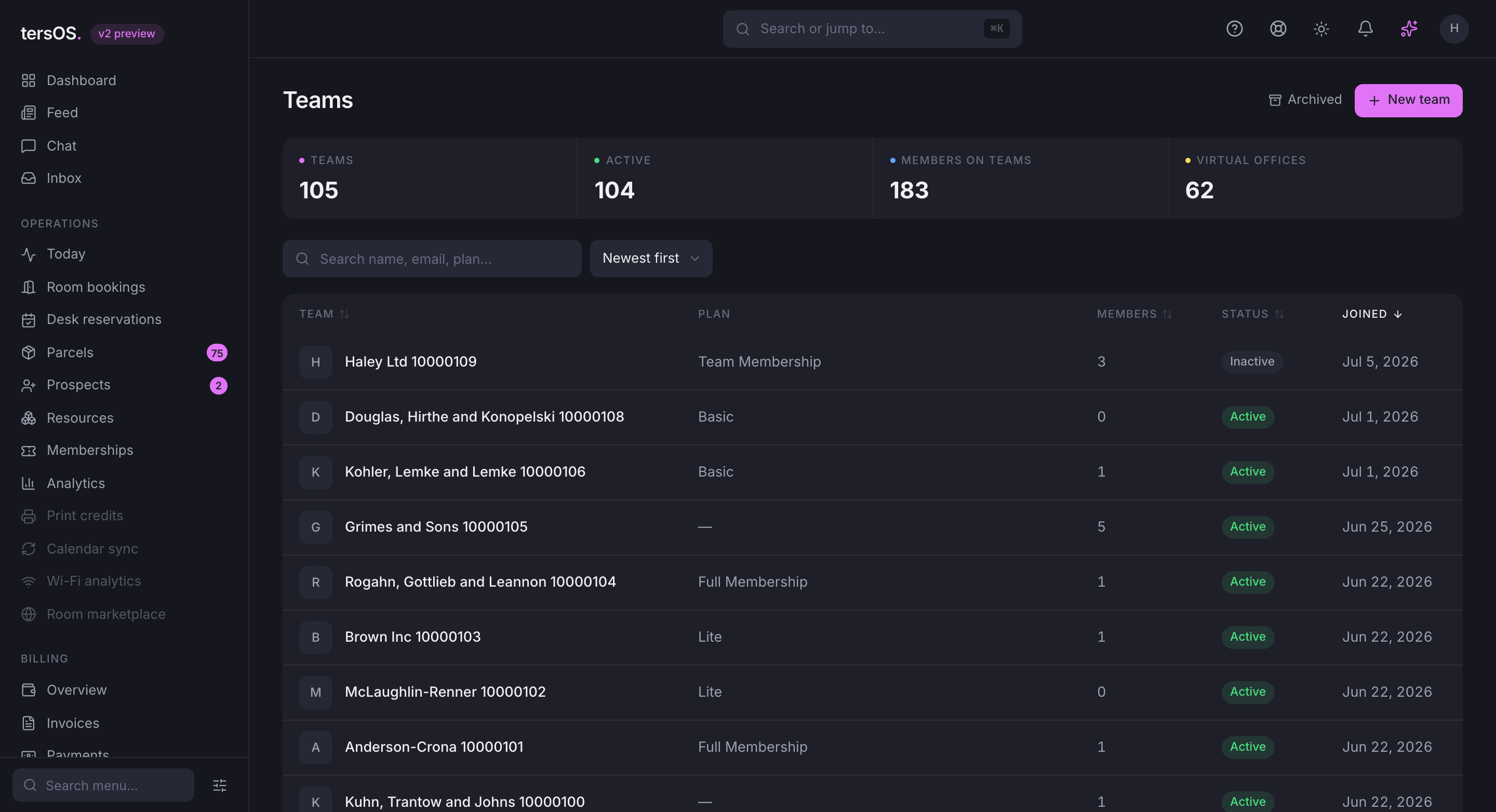
Operations → Resources, Community → Teams and Billing → Recurring revenue.
Steps
The desks
- Open Operations → Resources and click the office. Its description shows the floor area, the number of desks and the monthly price.
- In a desk's row click Assign, type the employee's name, pick them and confirm with Assign. Repeat for the other desks. Unassign frees a desk.
The right to come in
- Open the company (Community → Teams), click Add plan on the Plans card and pick your private office plan. Every employee of the company now has unlimited access. This step charges nothing.
The monthly rent
- Open Billing → Recurring revenue and click New agreement.
- Under Customer type the company's name and pick it in the TEAMS group.
- Leave What is billed on Membership and pick the private office plan under Plan.
- Under Price override enter the office's monthly price without VAT. The line below the field shows what the customer pays with VAT.
- Put the office's number in Notes, then click Create agreement.
What happens next
The company is charged on the first day of every month, on its open tab, which becomes an invoice at the end of the month. The share for the current month is added right away.
Good to know
- Price override is a price without VAT.
- Leave the quantity of the charge at 1: an office has one price, whatever its number of desks.
Questions
A company grows and needs one more desk in the same office. Assign the free desk to the new employee under Operations → Resources. The rent changes only if you change the agreement.
How do I end the rent? Open the agreement under Billing → Recurring revenue and cancel it. What is already on the open tab stays.
Last reviewed on 26 November 2026