
07 — tersai
The AI that already
knows your space.
tersAI answers questions and takes action using your live space data — from availability and bookings to events and invoices.
 Live · demo.tersos.io
Three audiences
Staff, members and visitors talk to the same assistant.
Your front desk asks from the backoffice, members ask from the Member App and visitors ask from the Public Hub. It is the same assistant every time, and it knows who is asking, so a visitor never sees what a member sees. If your space does not use a module, the assistant never mentions it.
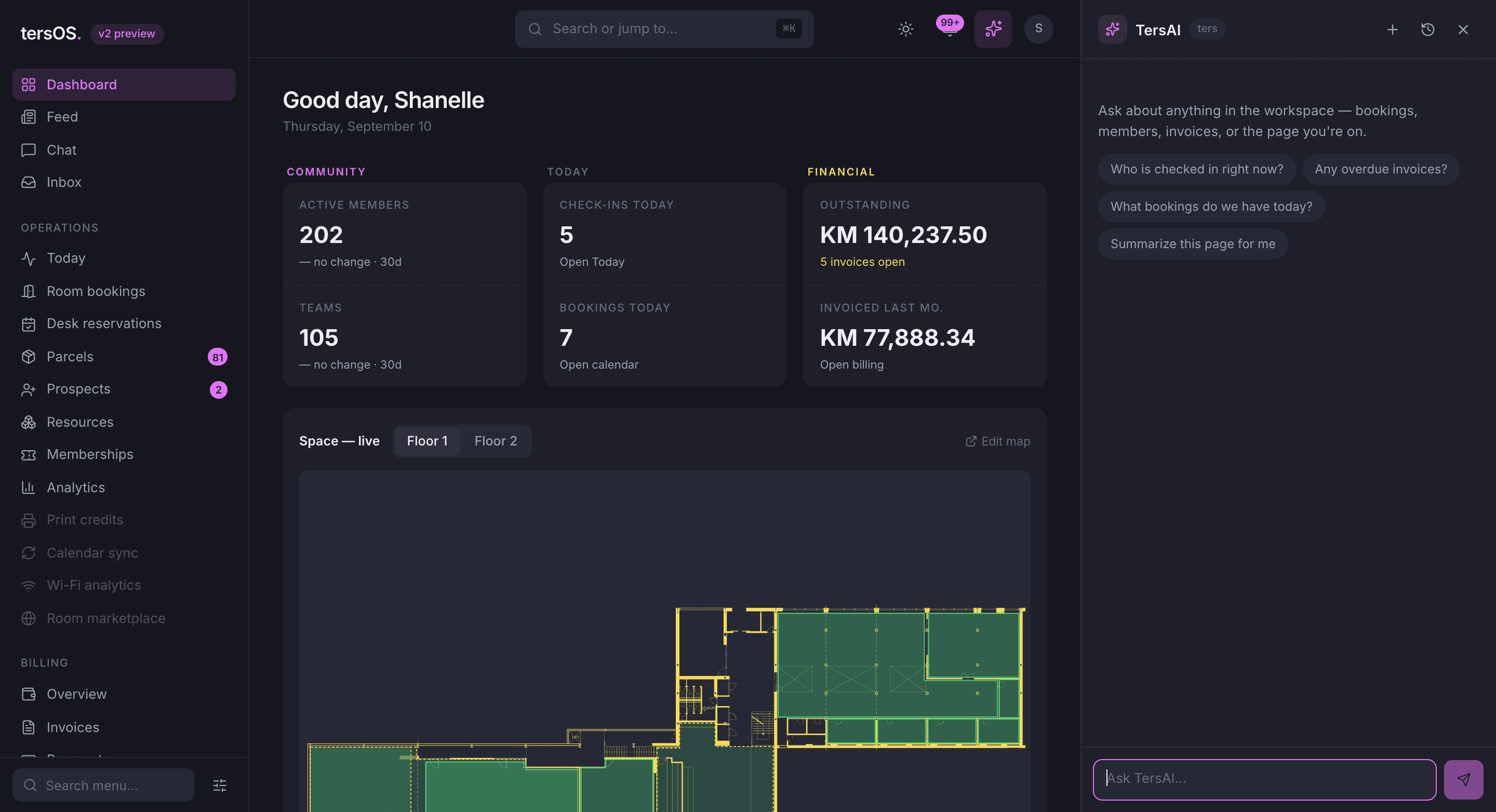
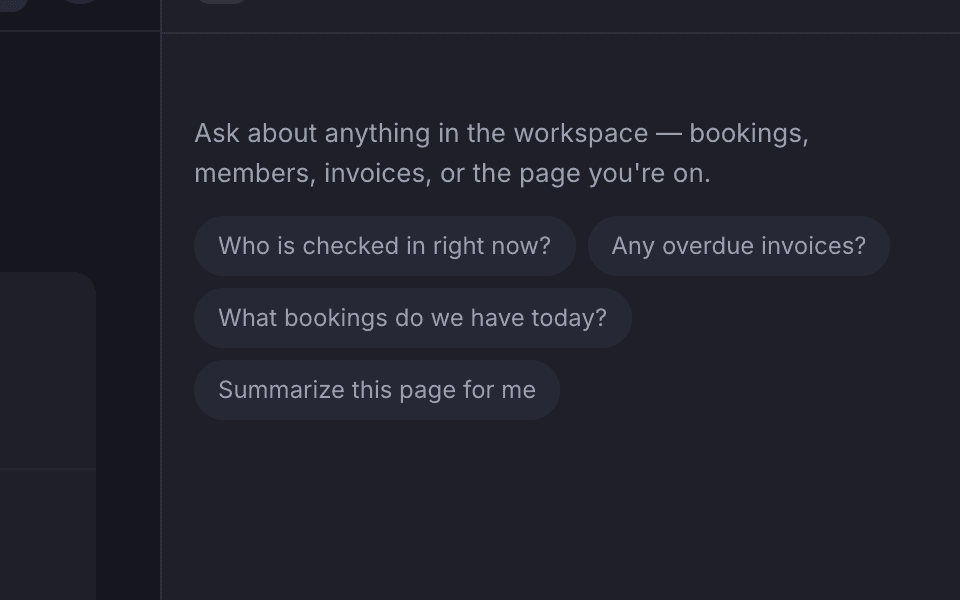
Staff: beside the page they are on
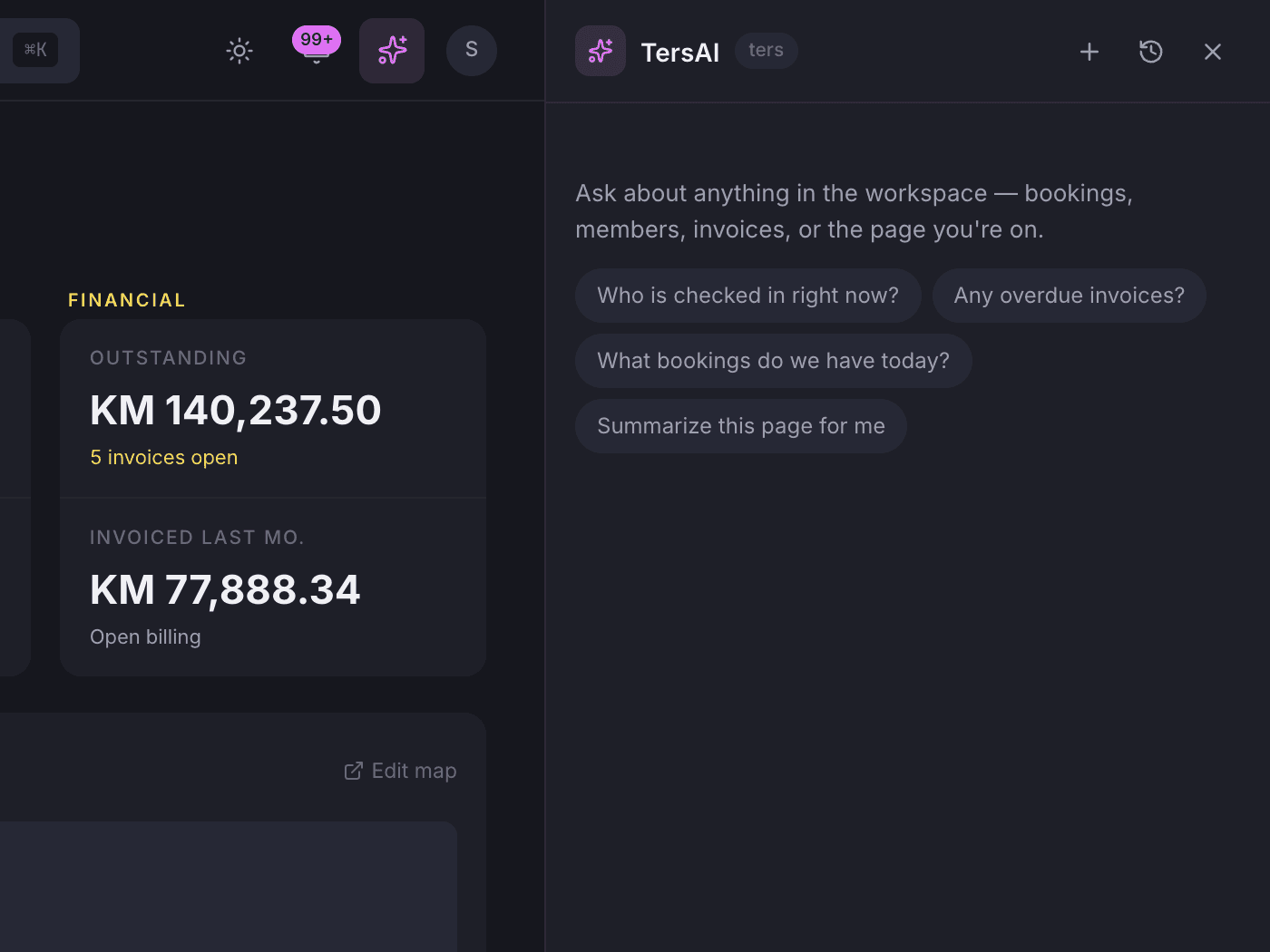
The panel sits beside any page and can read it, so “summarise this page” works anywhere.
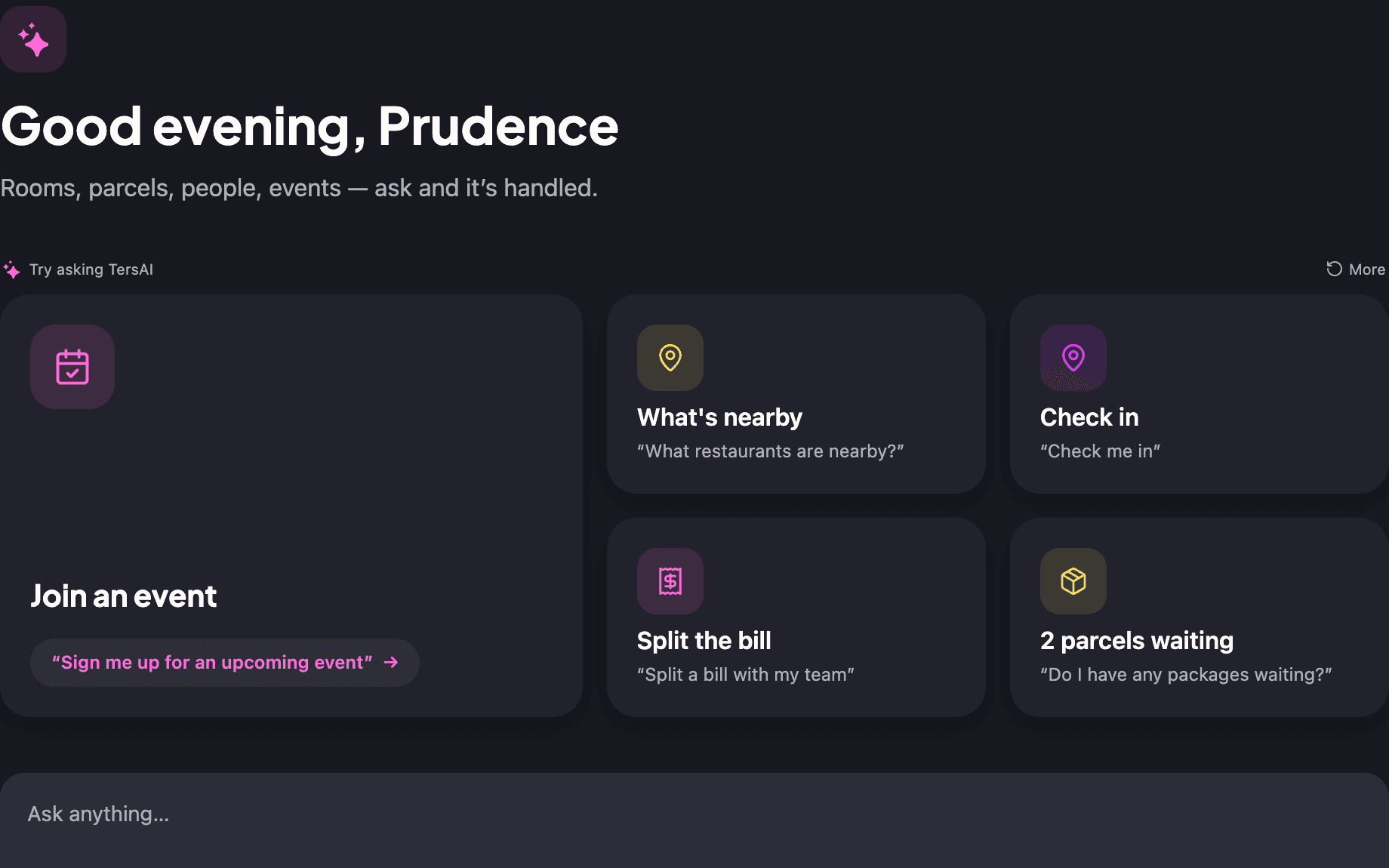
Members: a greeting and their own threads
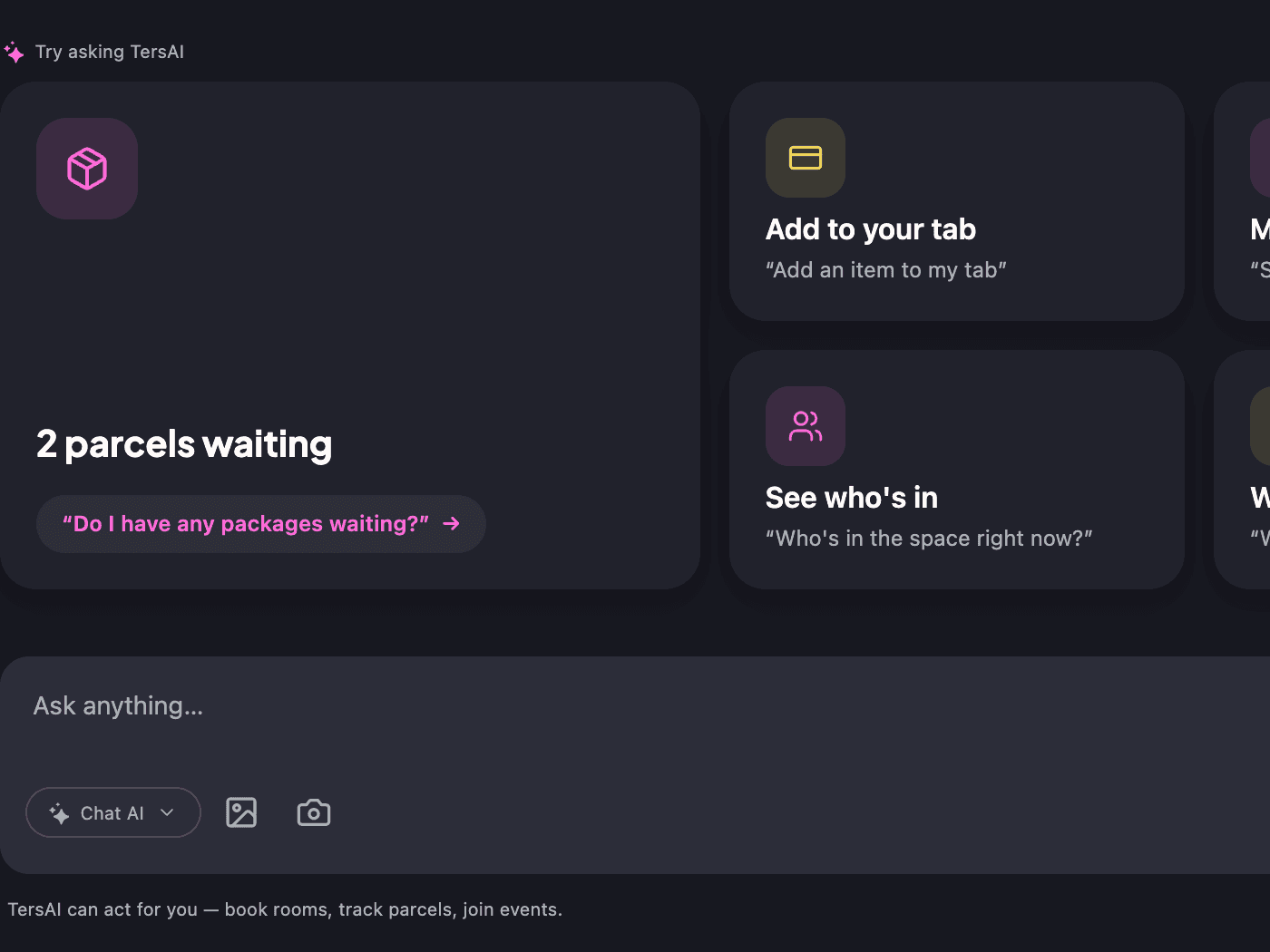
Members get a greeting by name, suggestions from their account and their recent threads.
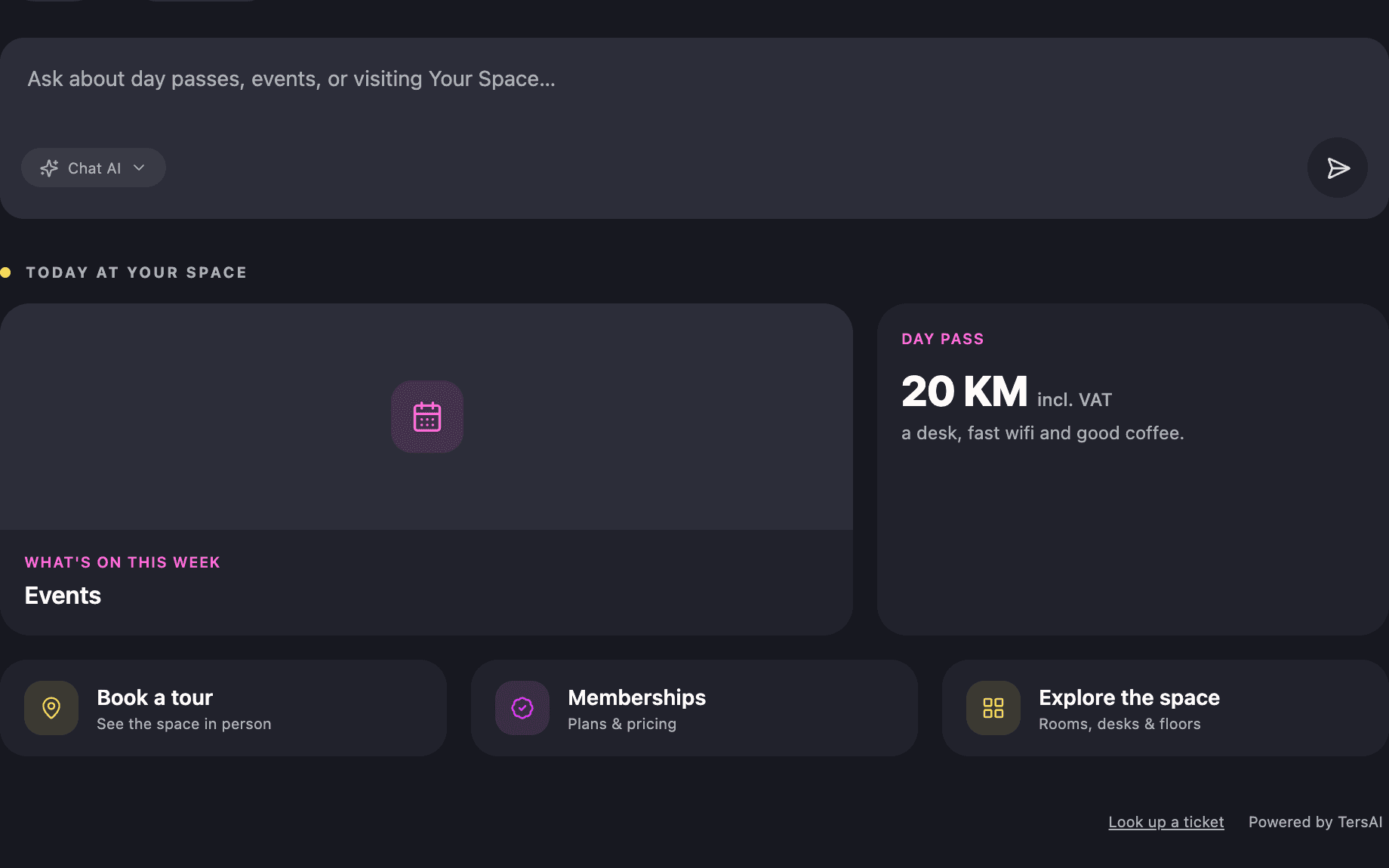
Visitors: no account needed
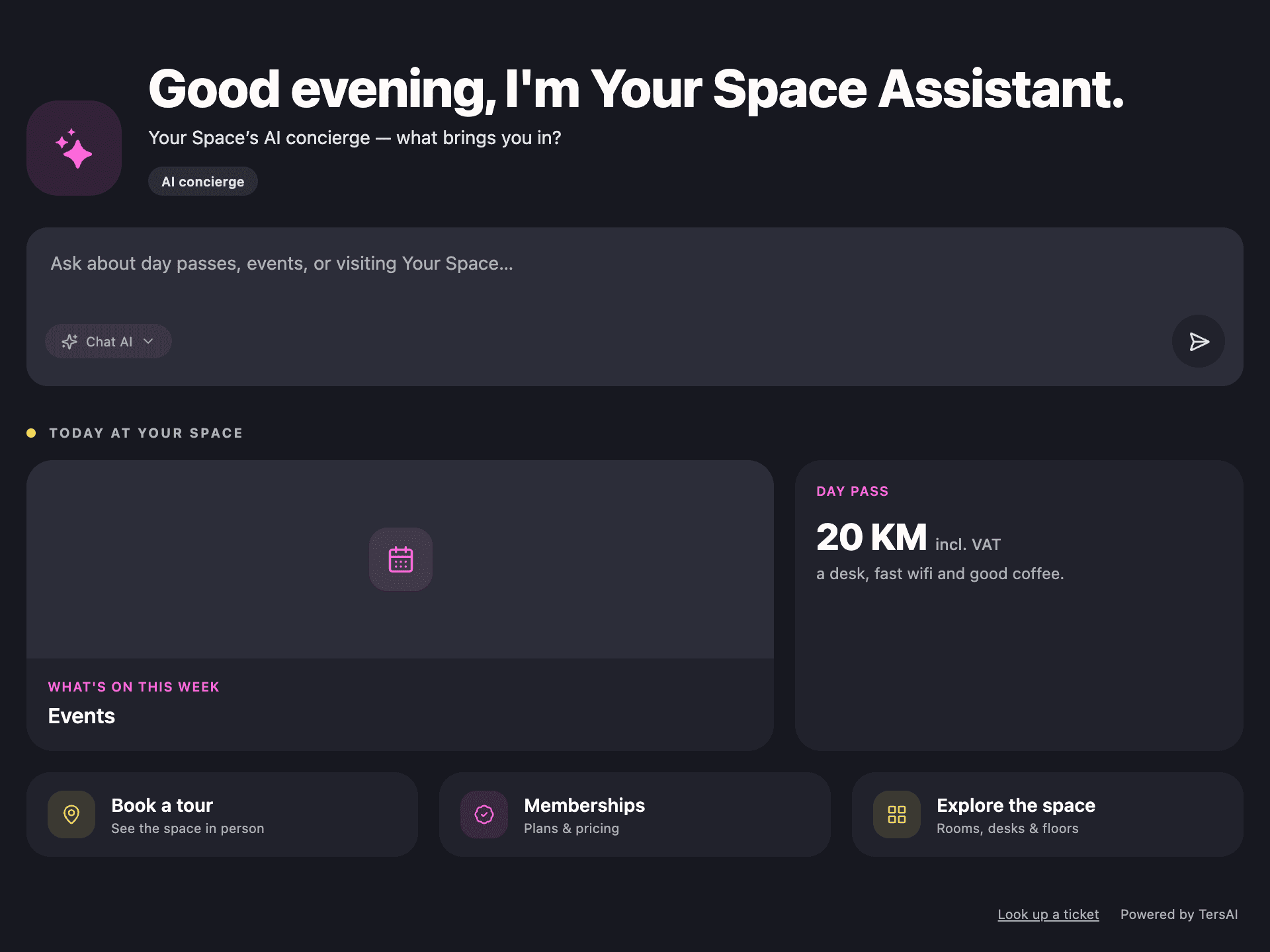
The hub shows today’s day-pass price and this week’s events, and answers with no sign-in.
Answers you can tap
The assistant answers with cards and forms, not only text.
When the answer is a set of rooms, you get a picker to book from. When it is an event, you get the event card with its Register button. It can also show the floor map with the room highlighted, a form to fill in, a photo gallery, a cart, a bill split or the open tab, inside the conversation.
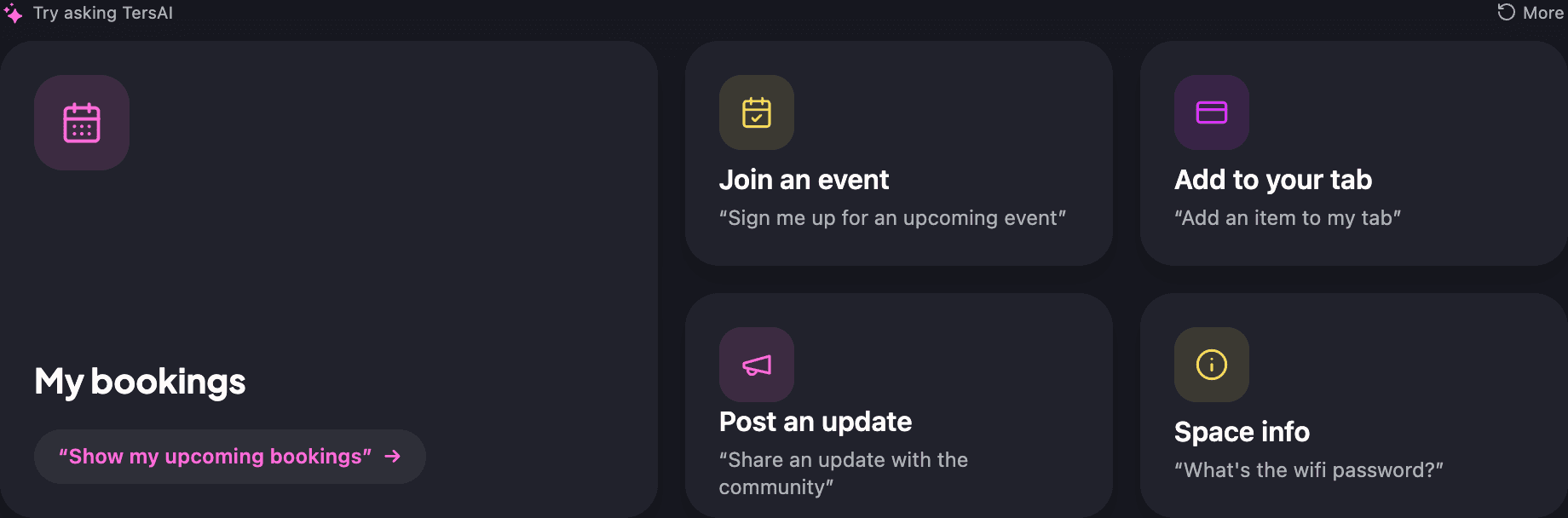
Suggestion cards are picked for the member who is asking.
The “Try asking TersAI” cards are chosen for that member from their membership and role, so a member with a parcel waiting sees the parcel card first.
- Booking options as a picker, events with a Register button
- The floor map with the room highlighted, and a form to fill in
- A cart, a bill split and the open tab, itemised
- Attach a photo to a message
It asks before it acts
The assistant asks before it books, checks in or charges anything.
A question about availability is answered straight away. A booking, a check-in or a charge to a tab is shown first as a card with exactly what is about to happen, and nothing happens until the member or a staff member approves it. Several actions at once are approved with a single yes.
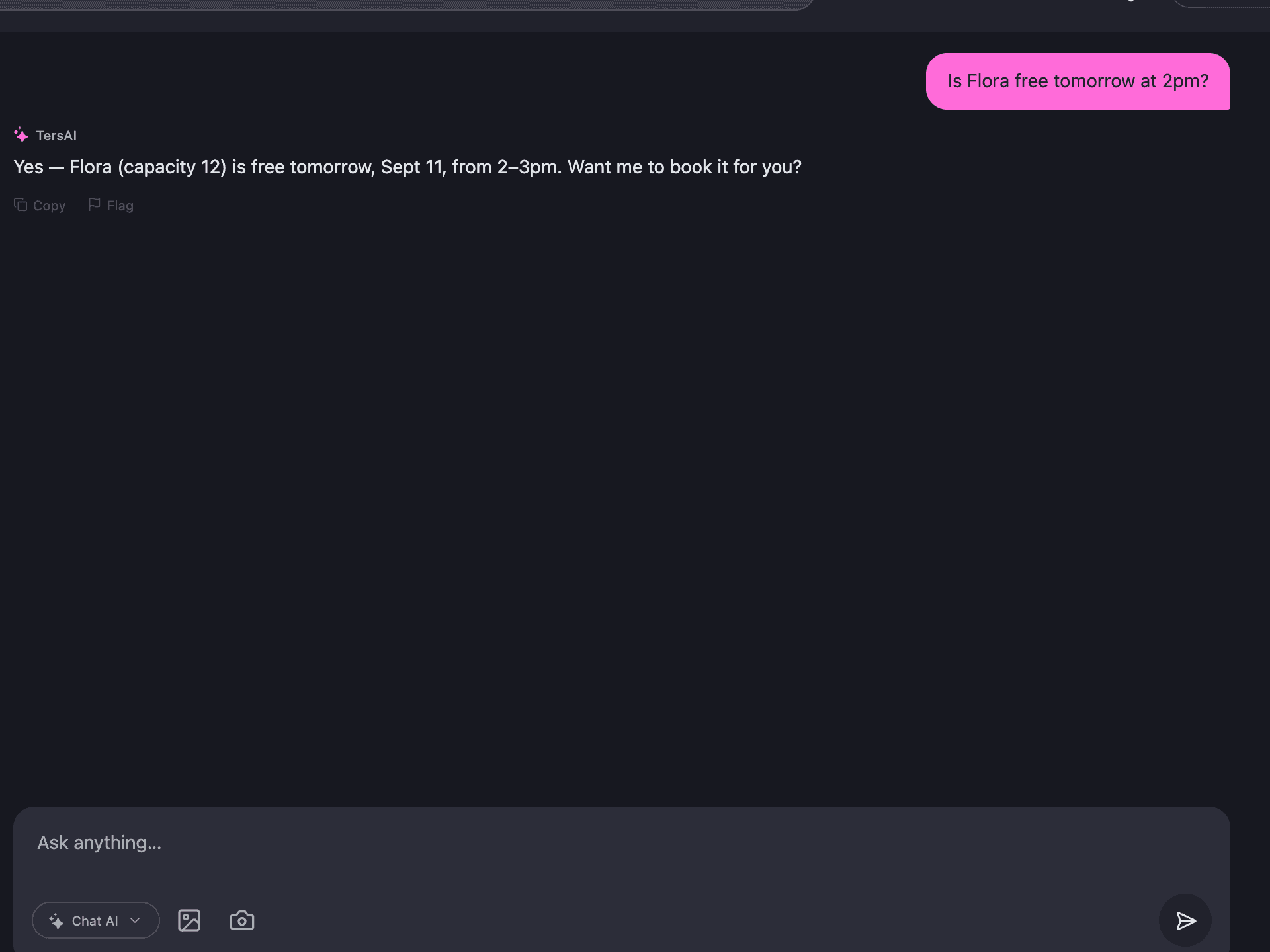
The question is answered; the booking waits for a yes.
In the demo space a member asked whether Flora was free tomorrow at 2pm. The assistant checked the calendar, answered with the capacity and the free slot, then offered to book. The booking only goes through once the member says yes.
- Every action can be approved or rejected before it happens
- Several actions can be approved together with one yes
- Staff can see what the assistant did and whether it worked
Knowledge base
Staff write down how the space works, and the assistant answers from that.
Staff fill in a knowledge base in Settings: what kind of place it is, where it is and what is nearby, which amenities are included and which can be booked, the community, selling points, FAQs and notes. The assistant answers questions about your space from this and nothing else.
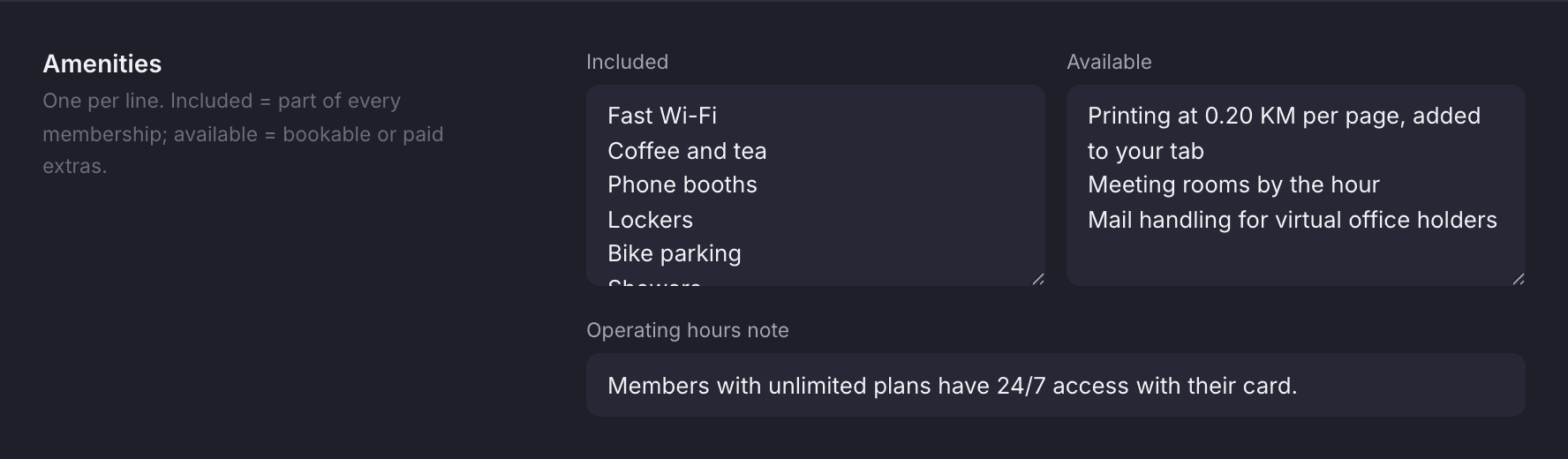
Each subject has its own section.
Amenities are two lists, what is included and what can be booked, plus a note on opening hours. Location covers where you are, the surroundings, landmarks, how to get there and parking, which is where directions and “what is nearby” answers come from.
- FAQs are answered word for word
- Your own notes are used in every conversation
- Nearby parking, cafés and ATMs come from Google Maps
- Your space’s recent LinkedIn and Instagram posts
Visitors
A visitor on the hub can ask, and a lead is never lost.
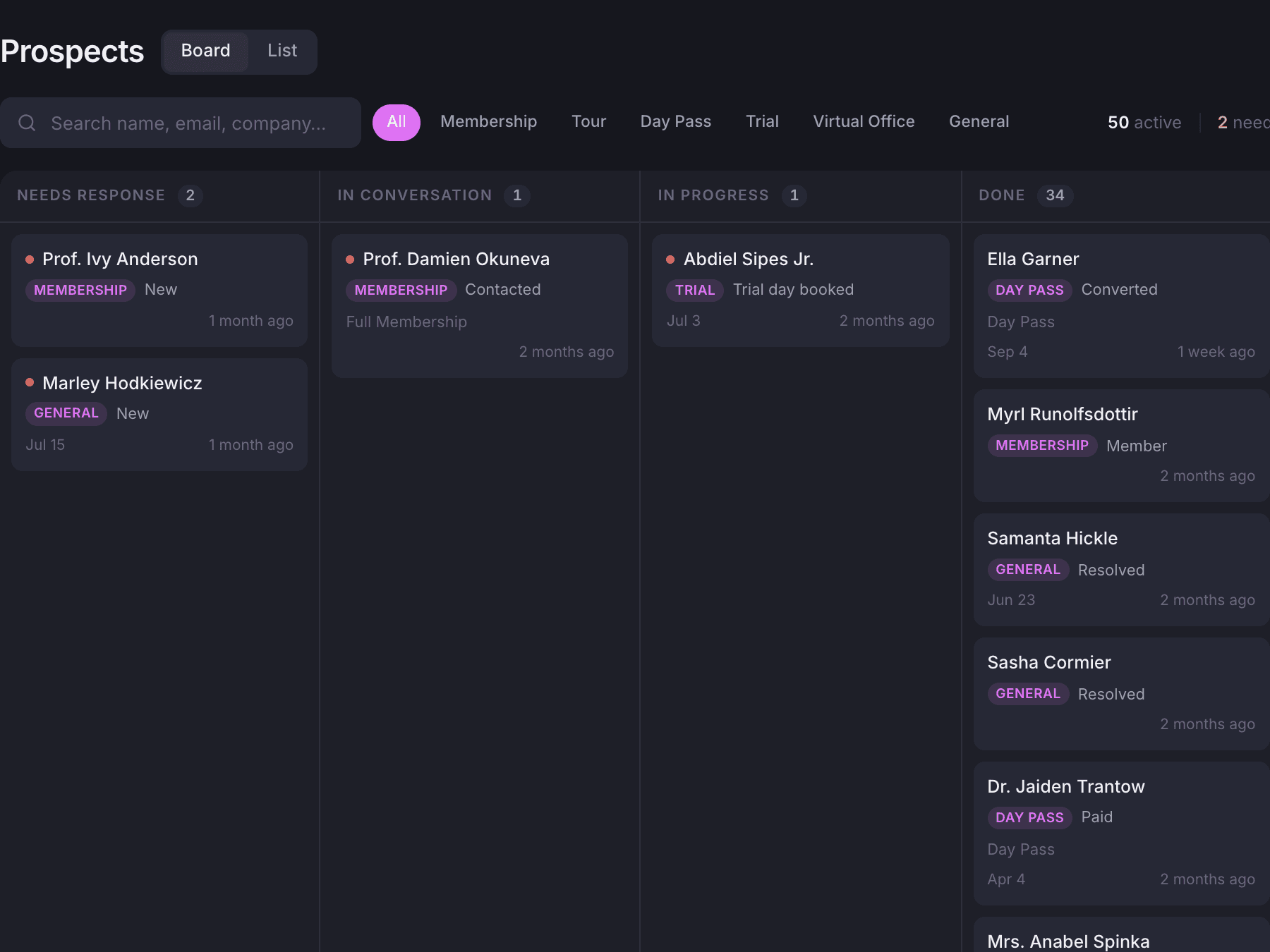
The concierge on the Public Hub answers anyone about day passes, tours, memberships and this week’s events, with no account needed. When a visitor leaves an email, a lead lands on your prospects board with the end of the conversation attached. One conversation never makes more than one lead.
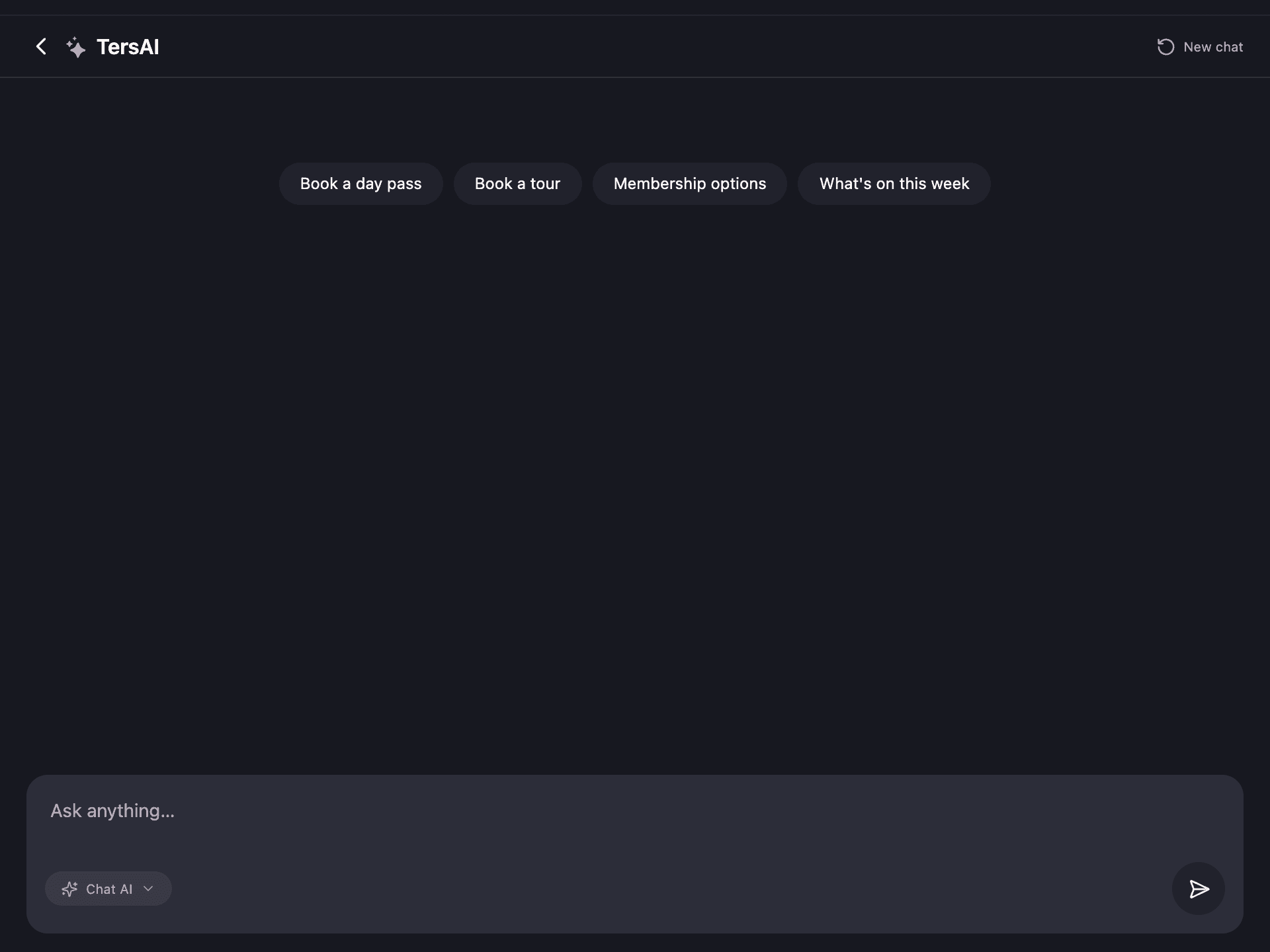
The guest chat is one tap from the landing page.
Four suggestions cover the common questions. A visitor who wants a day pass or a tour ends up on your prospects board with their preferred dates. The conversation is kept for your team and deleted after 90 days, because it holds visitor details.
- Visitors need no account and nothing to install
- Day pass, tour, trial and membership requests land as prospects
- One lead per conversation, with the chat attached
- Visitor conversations are deleted after 90 days
Trust
Bad answers are flagged, reviewed and used to make the assistant better.
Anyone can flag an answer from the conversation. Flags go to a review queue in Settings, where staff keep the real misses and dismiss the rest. A kept miss becomes a check the assistant must pass from then on, and every action it takes is checked for whether it actually worked.
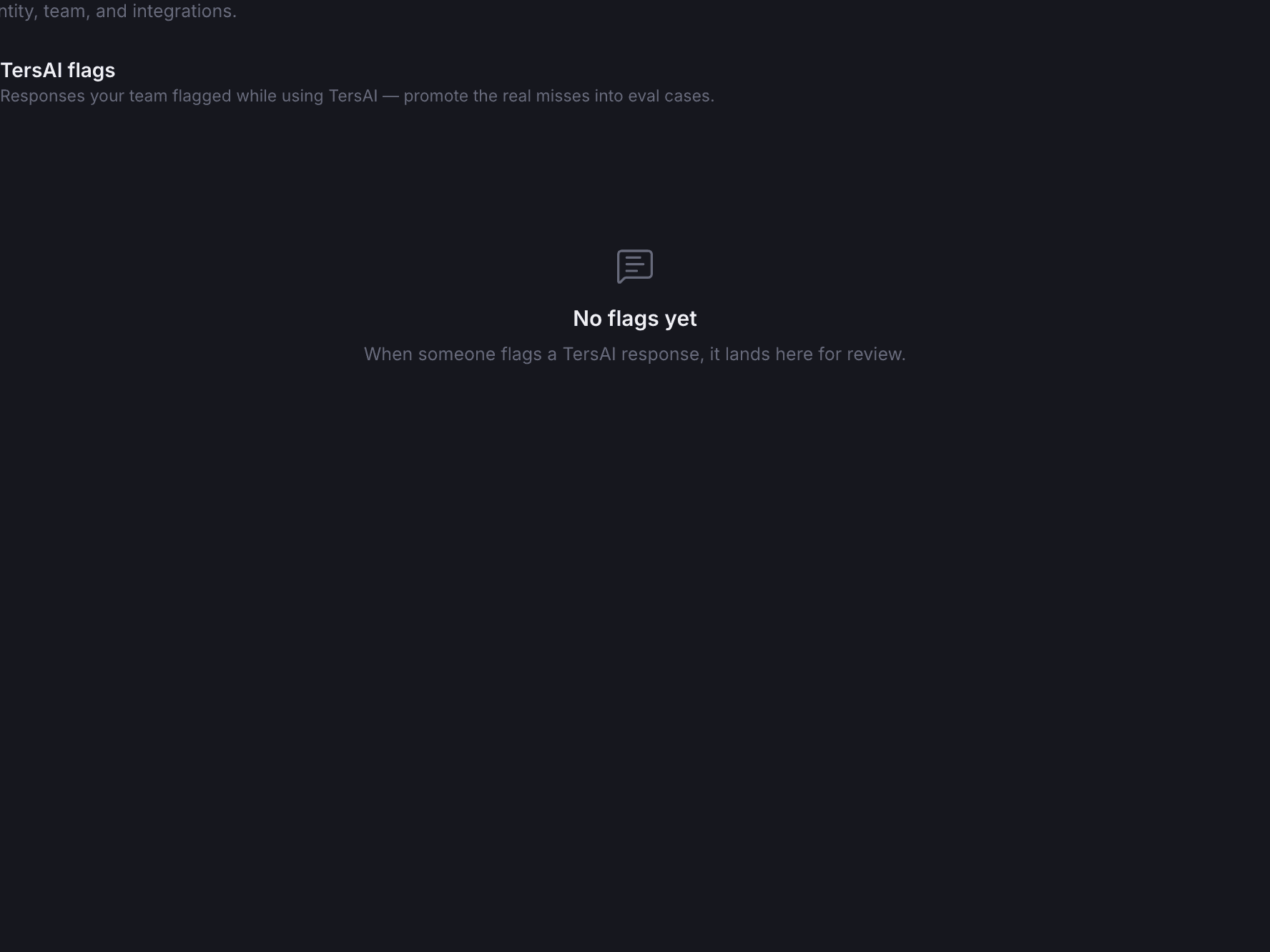
Flags wait in a queue in Settings.
Each flag comes with the conversation. Promote keeps it as a check for the future, and Dismiss closes it with the reviewer’s name. The demo space has nothing flagged yet.
- Answers and actions are tested against real past questions
- Every action is checked for whether it worked, and why not if it failed
- Runs on Claude, OpenAI or your own AI provider
- A regular automatic health check
Where it shows up
The same assistant, wherever you ask.
The backoffice panel, the Member App and the Public Hub all talk to the same assistant, which knows who is asking. A conversation opened from a notification carries on in the backoffice for staff and in the app for members.
Also included
The rest of what tersAI does.
Ask
- Attach a photo to a message
- Suggestion cards picked for the member who is asking
- A morning brief and a nudge when a teammate arrives, with quiet hours
- Nearby parking, cafés and ATMs via Google Maps
- Your space’s recent LinkedIn and Instagram posts
- Visitors can chat without an account and only see what is public
Act
- More than 120 things it can look up or do across your modules
- It only offers what your space has switched on
- It asks before it books, checks in or charges anything
- Several actions approved together with one yes
- Booking pickers, event cards, the floor map, forms, galleries and a cart
- One link opens the same conversation in the backoffice or the Member App
Trust
- Flag a bad answer anywhere and it lands in a staff review queue
- Keep a flag as a check for the future, or dismiss it
- Tested against known-good questions and answers
- Staff can see whether each action worked, and why not if it failed
- Visitor conversations deleted after 90 days
- Runs on Claude, OpenAI or your own AI provider
- A full list of everything the assistant can do and what it may change
A lead that would have been lost
A visitor asks about a day pass on the hub and leaves an email.
The concierge answers visitors who have no account. When a visitor leaves an email address, they become a prospect with the end of the conversation attached, and one conversation never makes more than one lead. Staff pick it up on the prospects board like any other enquiry.
“Hi, do you do day passes? I’d like to try the space on Friday.”
tersAI — Yes. A day pass gets you a desk, wifi and coffee for the day. Leave your email and the team will confirm Friday for you.
“ana@example.com, Friday please.”
tersAI — Thanks, Ana. Friday is with the team; they will confirm by email.
a day-pass request from a visitor, captured as a prospect
“It knows what’s available because it’s connected to the same system we use.”The tershouse team, Sarajevo
Works with