
11 — contracts
Contracts that sign themselves.
Renewals that run on their own.
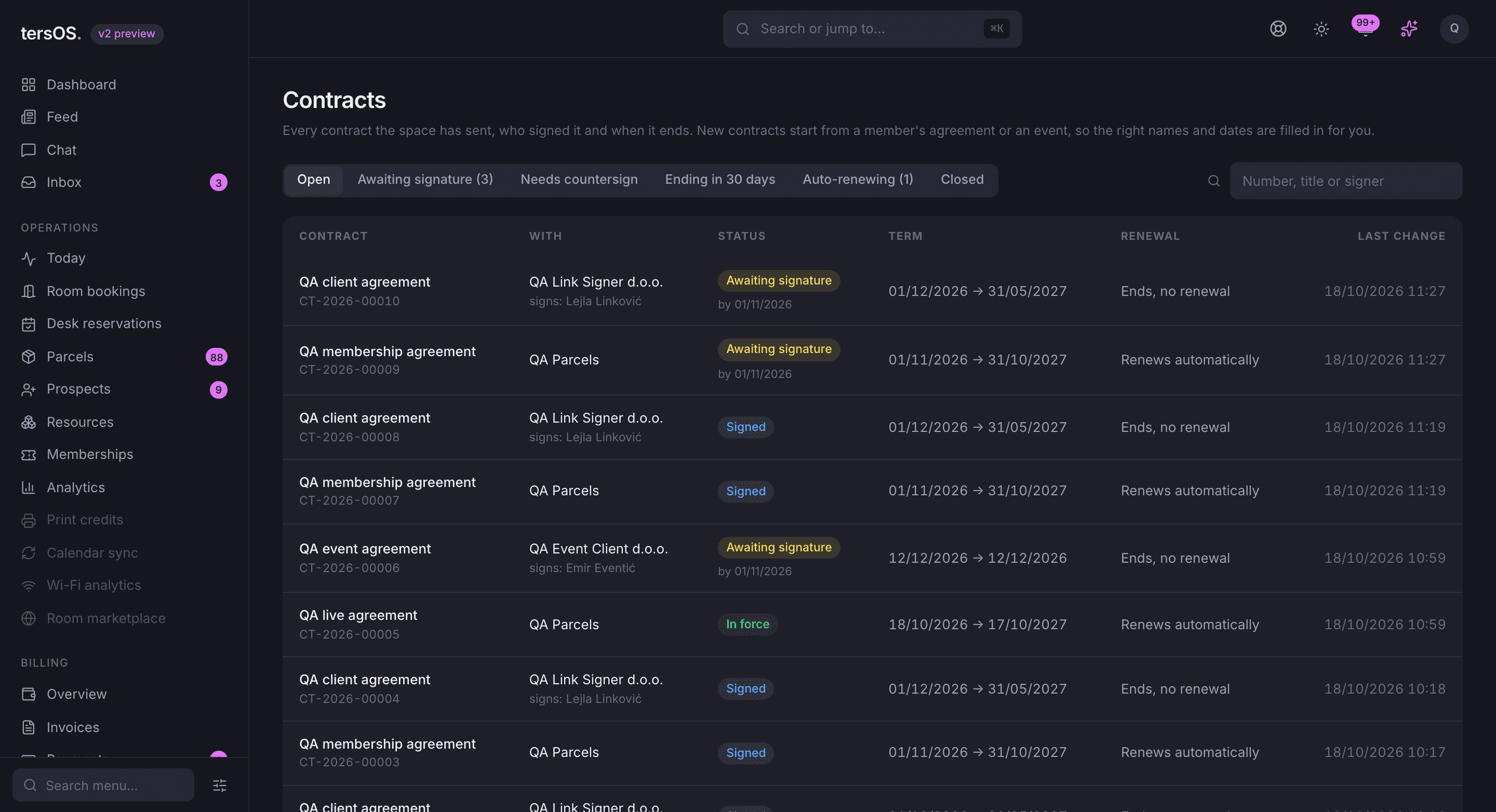
Membership and event contracts from your own Word templates, signed in the app or by emailed link, with a certificate of completion and a sealed PDF, and renewals and notices that happen without anyone watching the calendar. Included with Memberships & Billing, no per-signature fee.
 Live · app.tersos.io
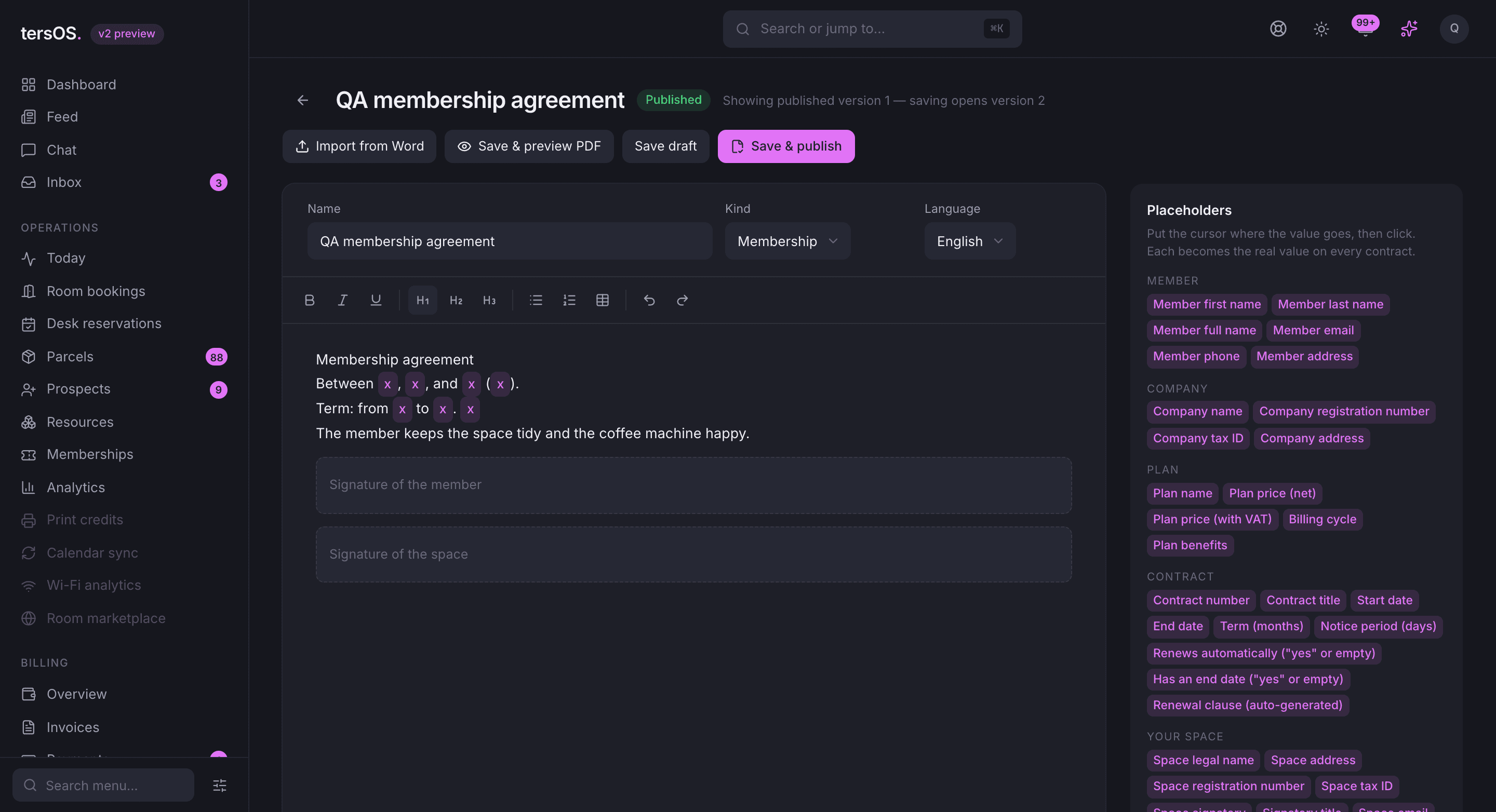
Templates
Your own contract, imported from Word, with the blanks turned into placeholders.
Import the agreement you use today and mark the names, dates, prices and the plan as placeholders; tersOS fills them in for every member. Clauses that apply only sometimes, such as the renewal clause, stay in or drop out on their own. A template is published as a version, and a signed contract keeps the exact words it was rendered from.
From the plan to the contract
Add a member to a plan and the contract goes out with it.
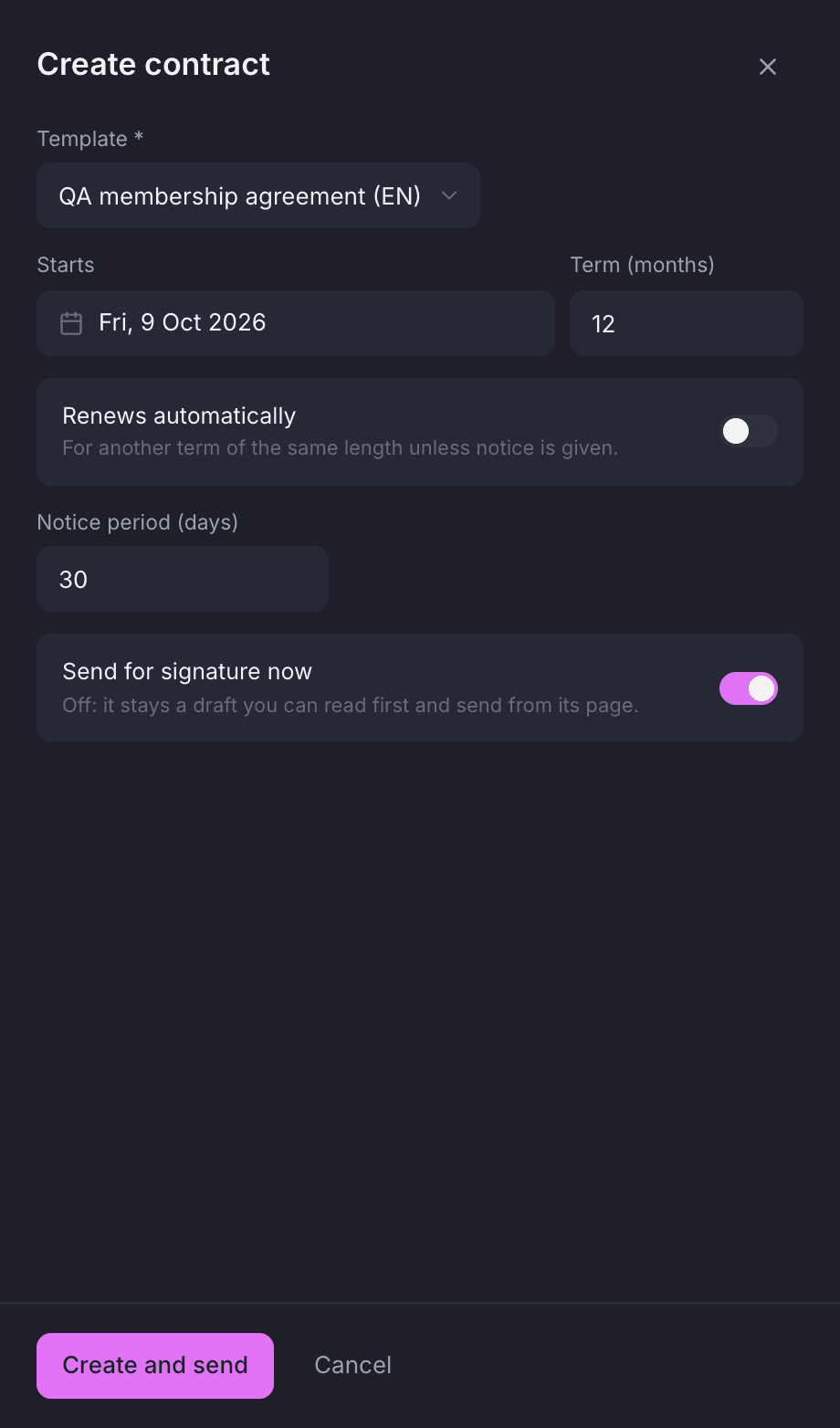
When you put someone on a plan, tick Generate contract: the template bound to that plan is suggested, you set the term, whether it renews and the notice period, and the contract is sent for signature. The same panel sits on every agreement page and on every event case, where the client signs it in their portal.
One panel, the right template already picked.
The term and the notice period start from your defaults. Send it right away, or keep a draft to read first and send from its page.
- Templates are suggested from the plan or the event space
- The billing agreement ends, renews and stops with the contract
- Prospects get theirs by emailed link before they have an account
Signing
Members read it in the app, sign with a finger or their name, and confirm with a code from their email.
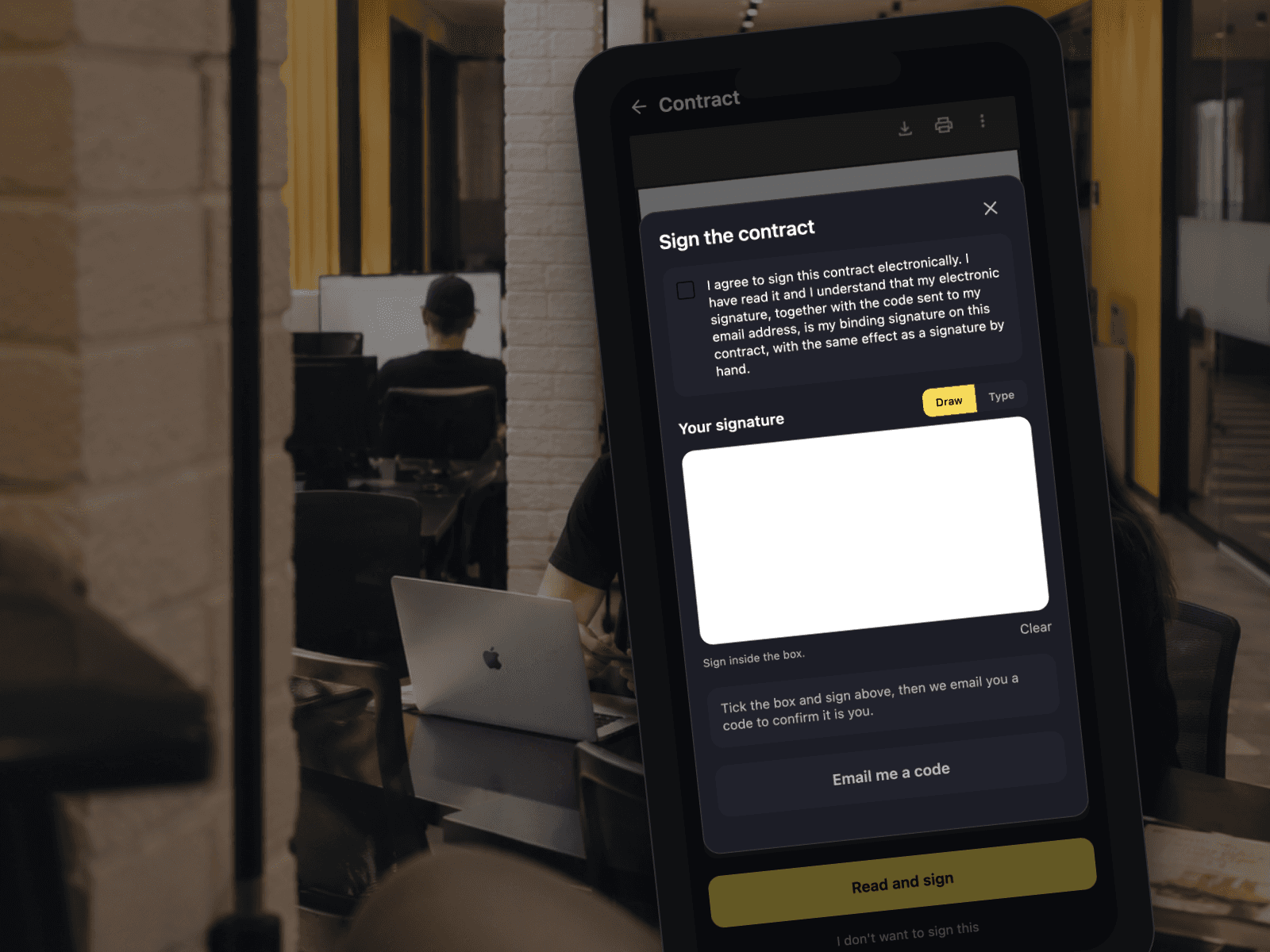
Signing is reading the PDF, ticking the disclosure, drawing a signature or typing a name, and entering the six-digit code emailed to the signer. The signature is tied to the exact document they read, the space countersigns with its stored signature, and both sides get the signed copy. People without an account, like an event client, sign through a link that works the same way.
One sheet: the disclosure, the signature, the code.
The member draws with a finger or types their name, asks for the code, enters it and signs. Nothing is signed until the code matches, and the signature is bound to the hash of the PDF on the screen.
- A six-digit code by email, valid ten minutes, five attempts
- Drawn or typed, on the phone or on the web
- The same sheet for event clients and prospects, by emailed link
In the app and the portal
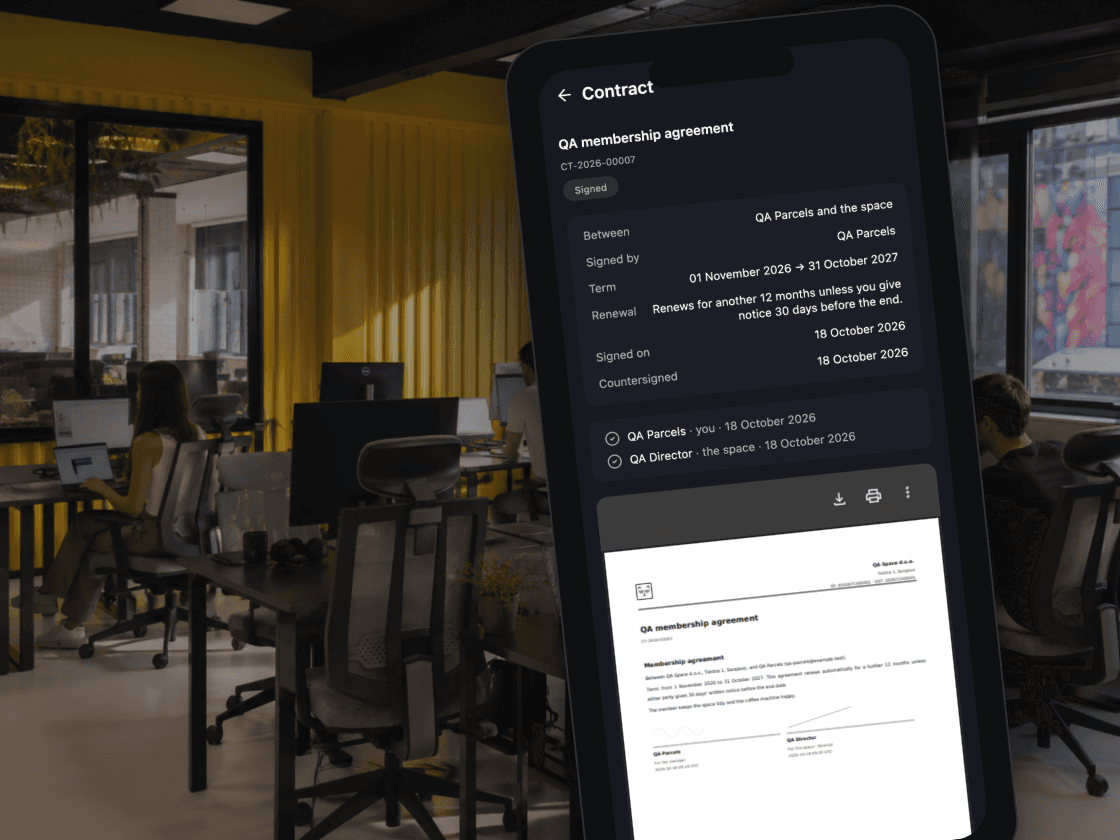
Documents keeps every contract, waiting or signed, where the member can find it.
A contract to sign comes with a notification and an email and sits first under Documents. Once signed, the copy with both signatures and the certificate stays there, downloadable any time. Event clients see their contract next to the proposal in the client portal.
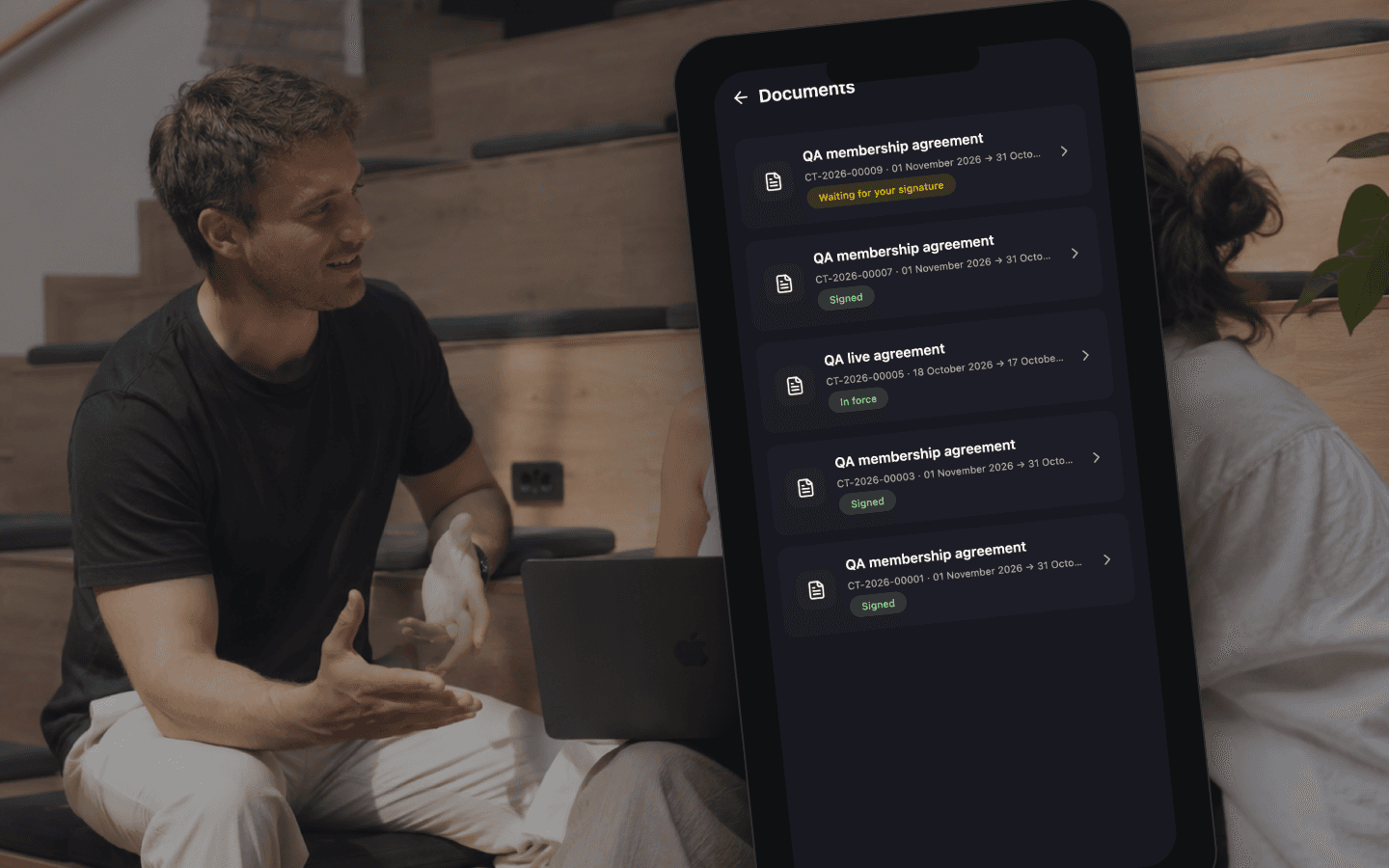
Documents in the app
Every contract with its state, and the one waiting for a signature first.
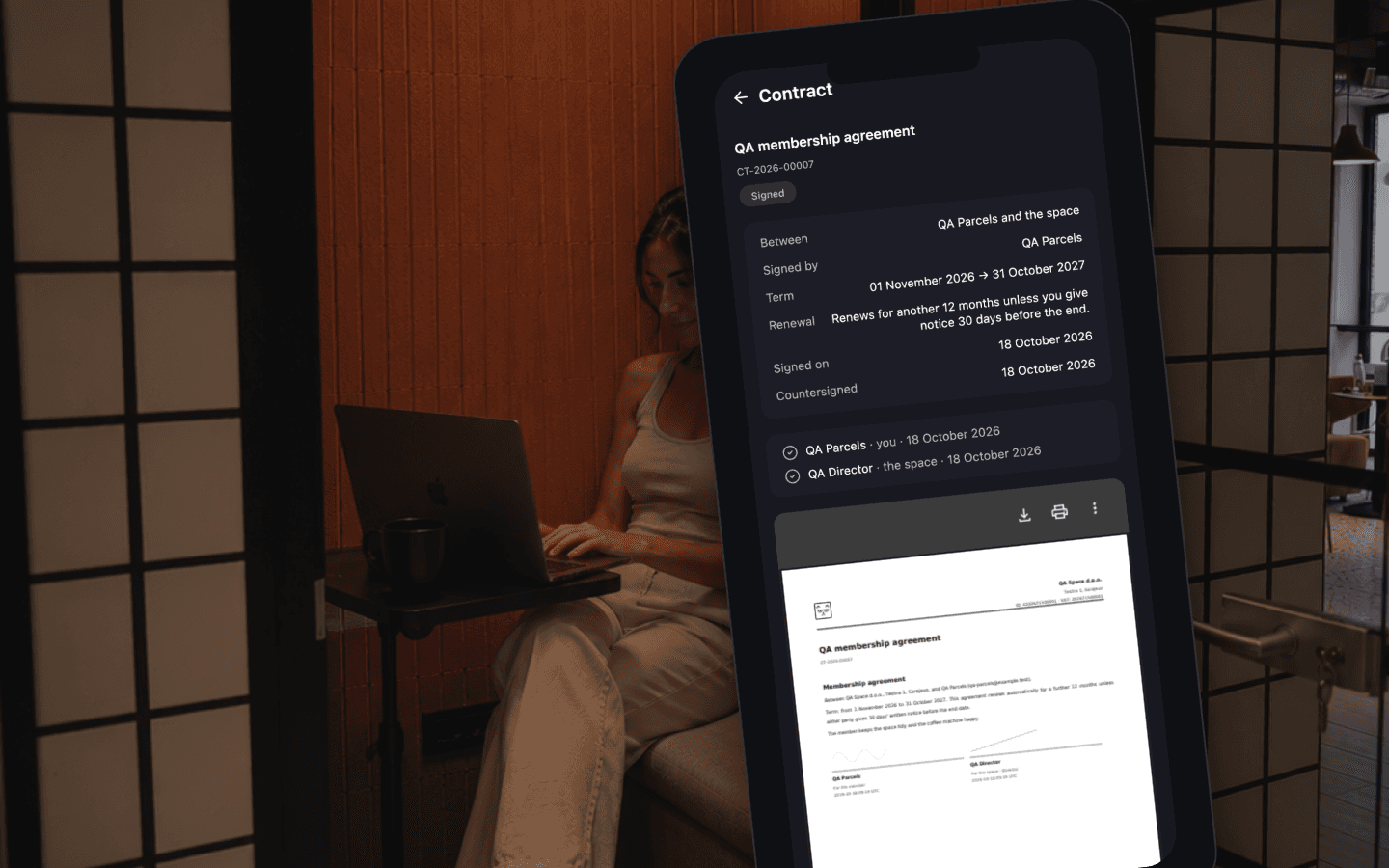
The signed copy stays
Both signatures on the PDF, the certificate behind it, downloadable any time.
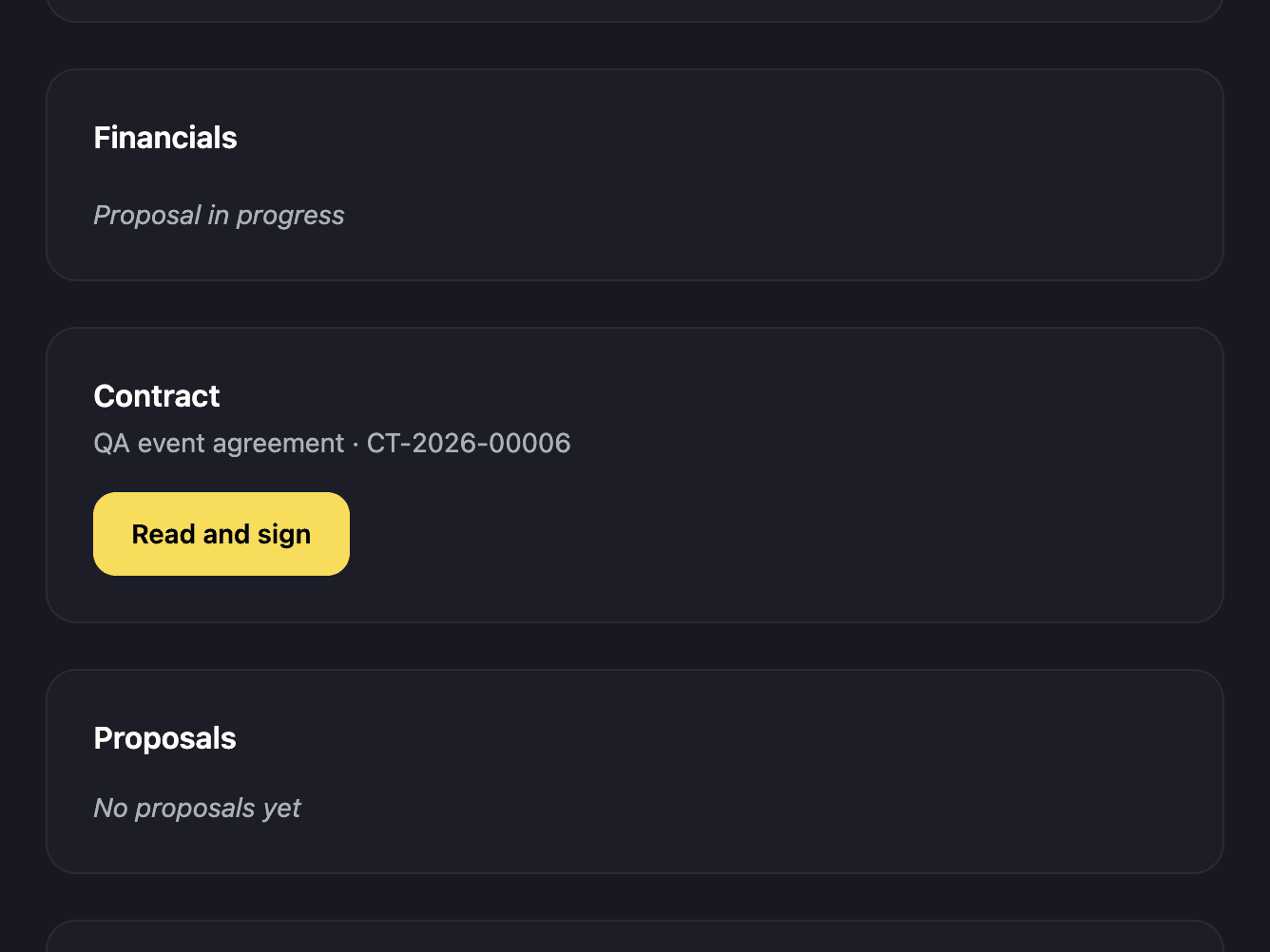
Event clients sign in their portal
The event portal shows the contract next to the proposal, with Read and sign.
What makes it hold up
Every signature comes with a certificate of completion, a sealed PDF and a trail nobody can edit.
The certificate page lists who signed, how, when and from where, the hash of the document each signer saw and the consent text they agreed to. The signed PDF is sealed with a digital signature, so Acrobat or Preview flags any later change, and every step of the contract’s life is logged in a chain where each entry carries the hash of the one before.
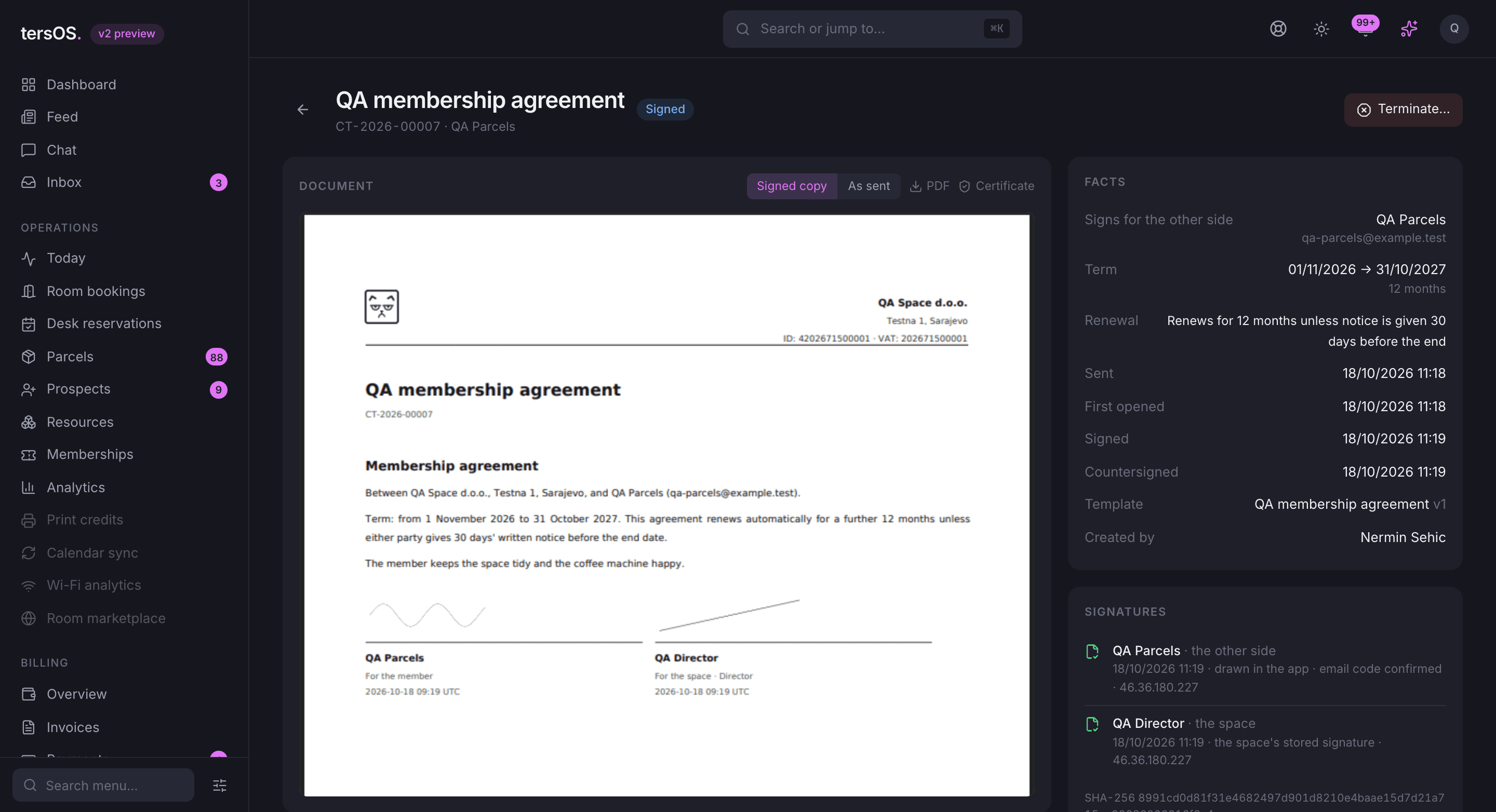
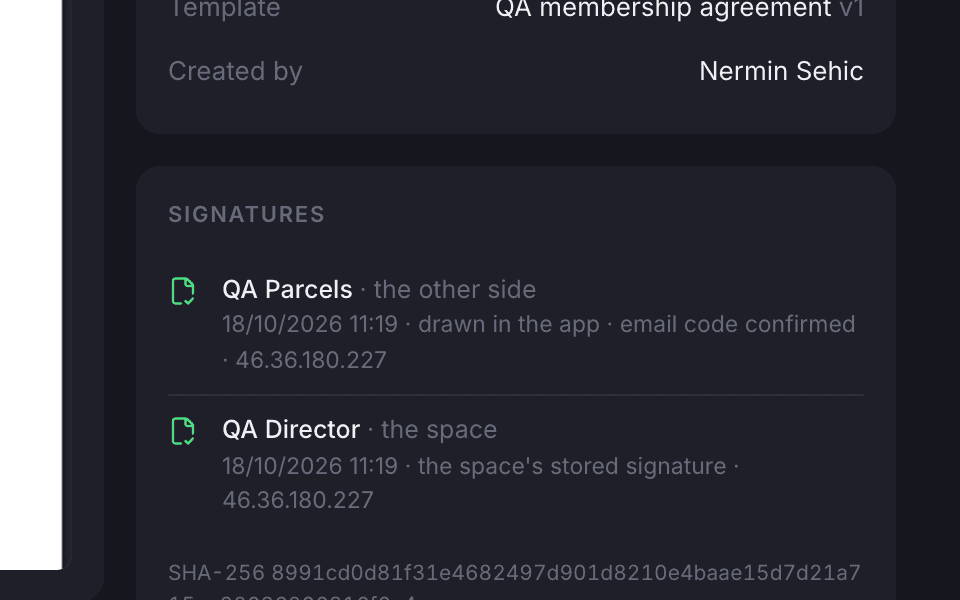
Both signatures, verified
The member’s drawn signature with the emailed code confirmed, the space’s stored one beside it.
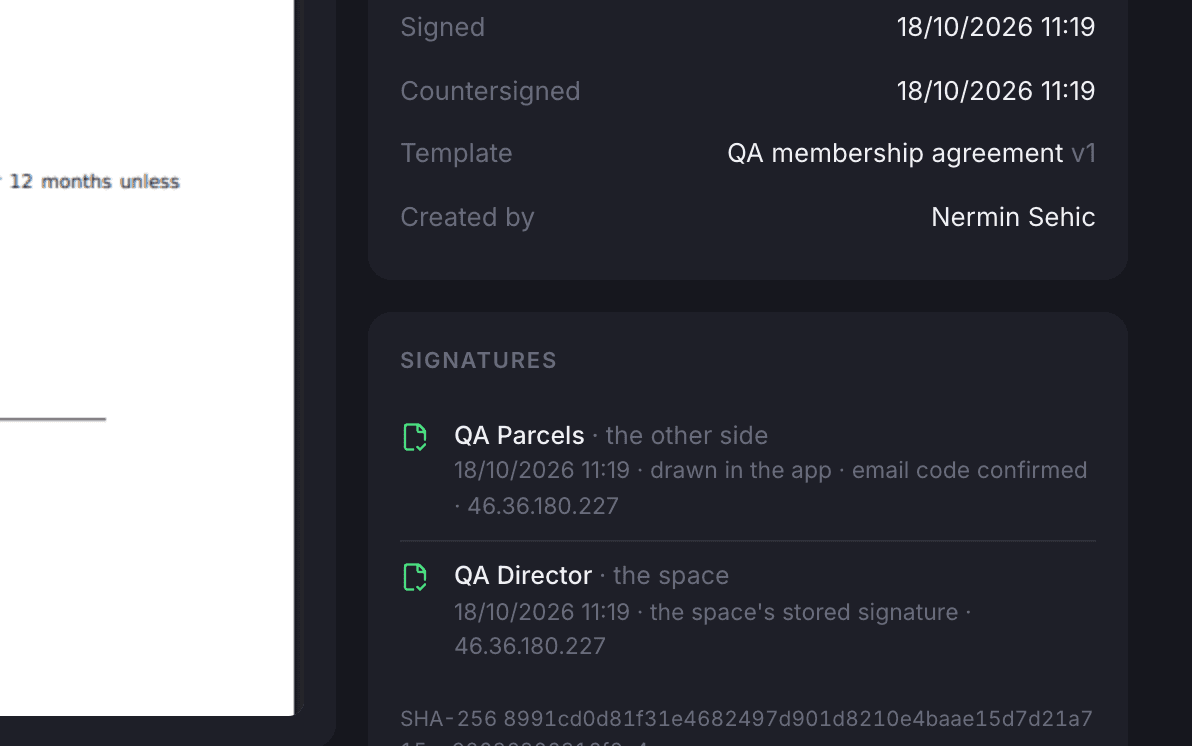
A timeline that cannot be rewritten
Sent, opened, code confirmed, signed, countersigned, sealed: each entry hashed to the last.
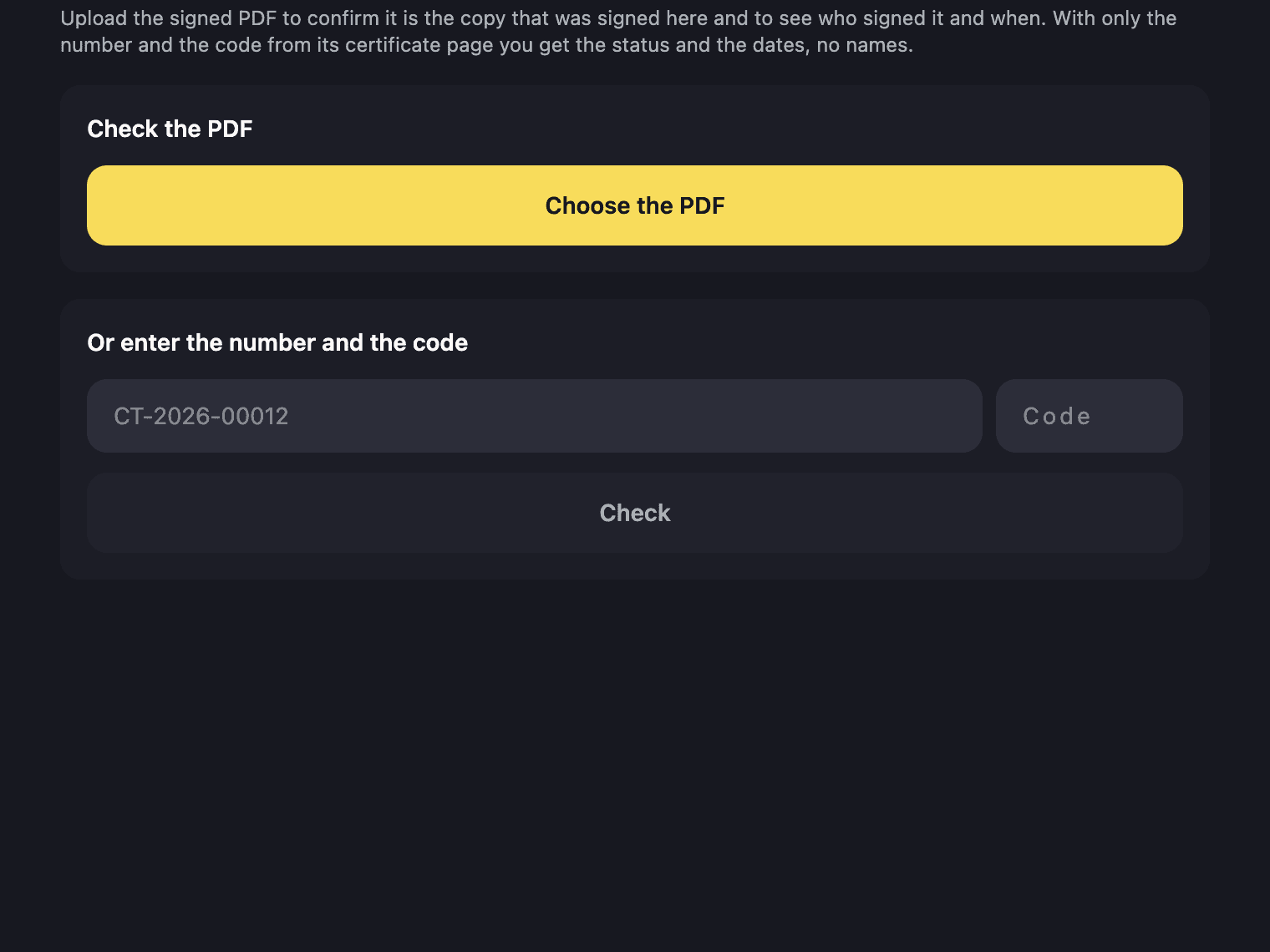
Anyone can check a copy
Upload the PDF on the verification page to see it is unaltered and who signed it.
Renewals and endings
Reminders, renewals and notices happen on their own.
An unsigned contract gets reminders on the days you set and expires at its deadline. A signed one comes into force on its start date. Before the end, the member and your team hear whether it renews and until when notice can be given; on the last day it renews for another term, or it ends and the billing agreement ends with it. A member who wants out asks from the app and you confirm the date within the notice period.
Your legal entity, your signatory, your rules.
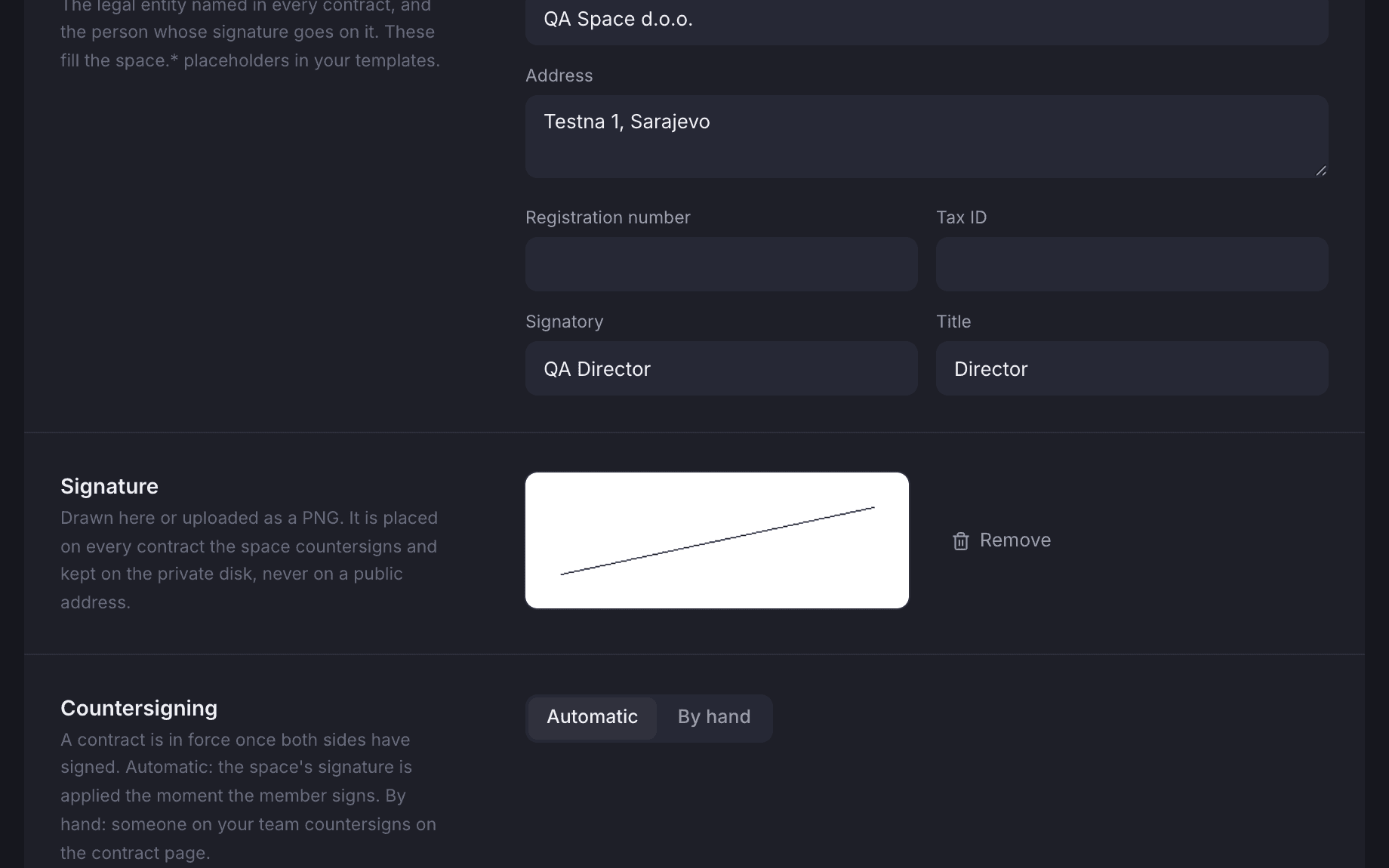
Settings → Contracts holds the entity named in every contract, the signatory and a signature drawn on the page, whether countersigning is automatic or by hand, and the defaults every new contract starts from. Turn on the gate and an unsigned contract holds the member’s charges and check-ins until they sign.
- Reminder days, signing deadline, term and notice period as defaults
- Countersign automatically or by a click on the contract page
- A gate that holds billing and check-ins until the contract is signed
Where it shows up
The same contract, wherever it is read.
Staff work from the contract page in the backoffice. Members read, sign and keep their copy in the Member App. Event clients sign in their portal. tersAI knows what waits for a signature and what ends soon.
Also included
The rest of what Contracts does.
Templates
- Word import that finds the blanks and turns them into placeholders
- Placeholders for the member, the company, the plan, the term, the space and the event
- Clauses that stay in or drop out: renewal, company details, event details
- Published versions; the words on a signed contract never change
- Templates bound to plans and event spaces, so the right one is suggested
- A preview PDF with sample values
Signing and the record
- Signing in the app, by emailed link, or marked as signed on paper with the scan
- A six-digit code by email: ten minutes, five attempts
- The signature tied to the hash of the document the signer read
- Automatic countersigning with the stored signature, or by hand
- Certificate of completion on every signed copy and on its own
- Sealed PDFs that any reader checks, and a public verification page
Life of the contract
- Reminders on the days you set, expiry at the deadline, send again with a new one
- Notices before the end to the member and to staff
- Renewal for another term on the last day, with the billing agreement extended
- Termination with a reason and a date; the agreement stops with it
- Members ask to end a contract from the app; staff confirm within the notice period
- A gate, off by default, that holds charges and check-ins until the contract is signed
Anything to sign?
tersAI tells a member what waits for their signature, and tells staff what ends this month.
A member asks and gets the contract, its term and the link to the page where signing happens; tersAI never signs for anyone. Staff ask what expires, who has not signed, and can have a contract drawn up for a member from the plan’s template, after a confirm step.
“Which contracts end or renew in the next 30 days?”
tersAI — Two reach their end date: Flex Desk for Amina renews for another 12 months on 31 October; the office agreement for Studio Nova ends and does not renew. One contract still waits for a signature.
“Send Lejla a 12-month membership contract starting on the 1st.”
tersAI — Create a contract for lejla@example.com starting 2026-11-01 for 12 months and send it for signature? Say yes and it goes out.
staff asking what ends soon and having a contract sent, confirmed in chat
“The contract goes out with the plan, comes back signed, and renews without anyone remembering to ask.”The tershouse team, Sarajevo
Works with