05 — screens
Digital signage connected
to your live schedule.
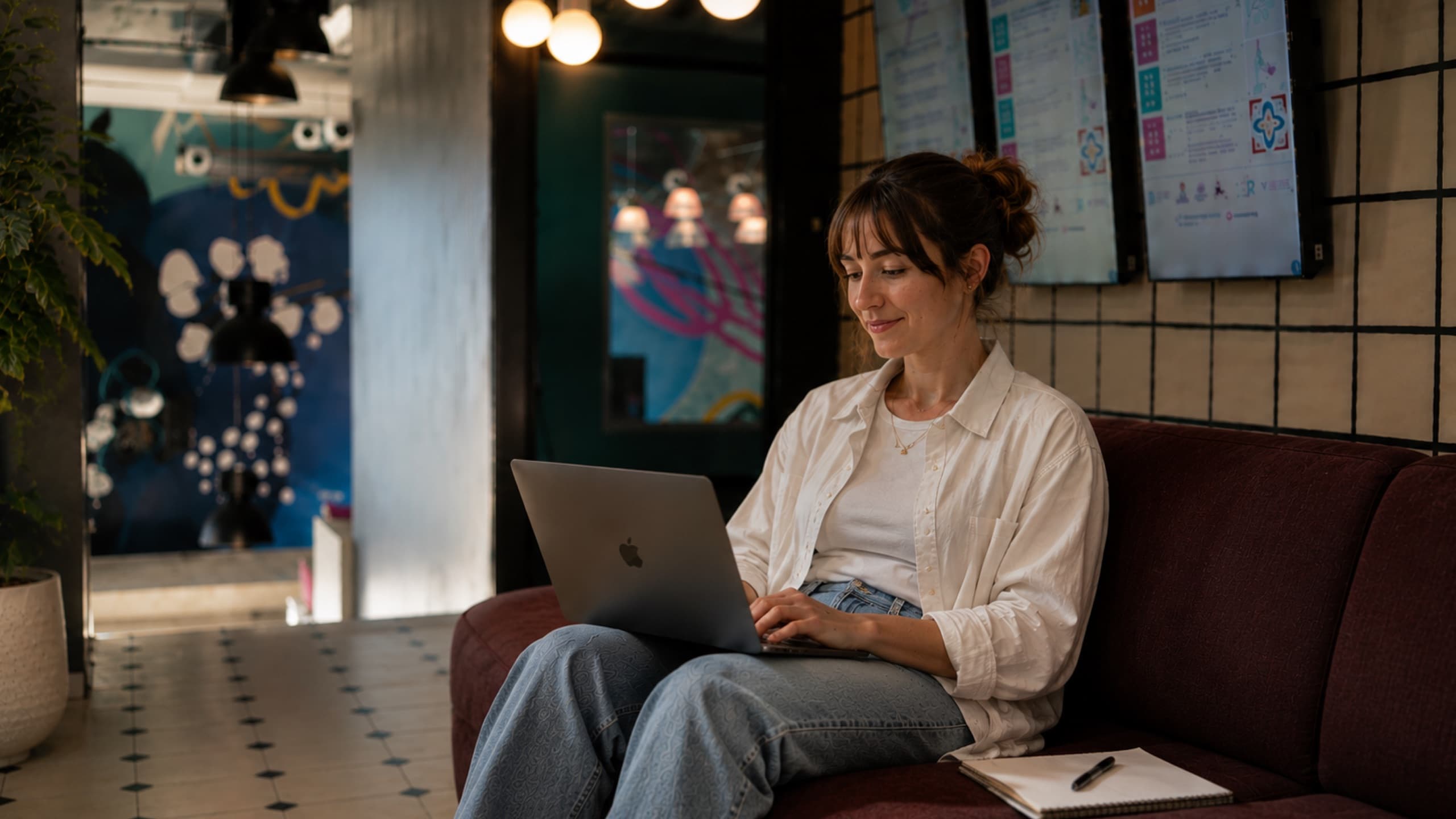
Screens in your lobby, floors and meeting rooms — showing live schedules, announcements and wayfinding from tersOS.
 Live · app.tersos.io
Pair a TV by code
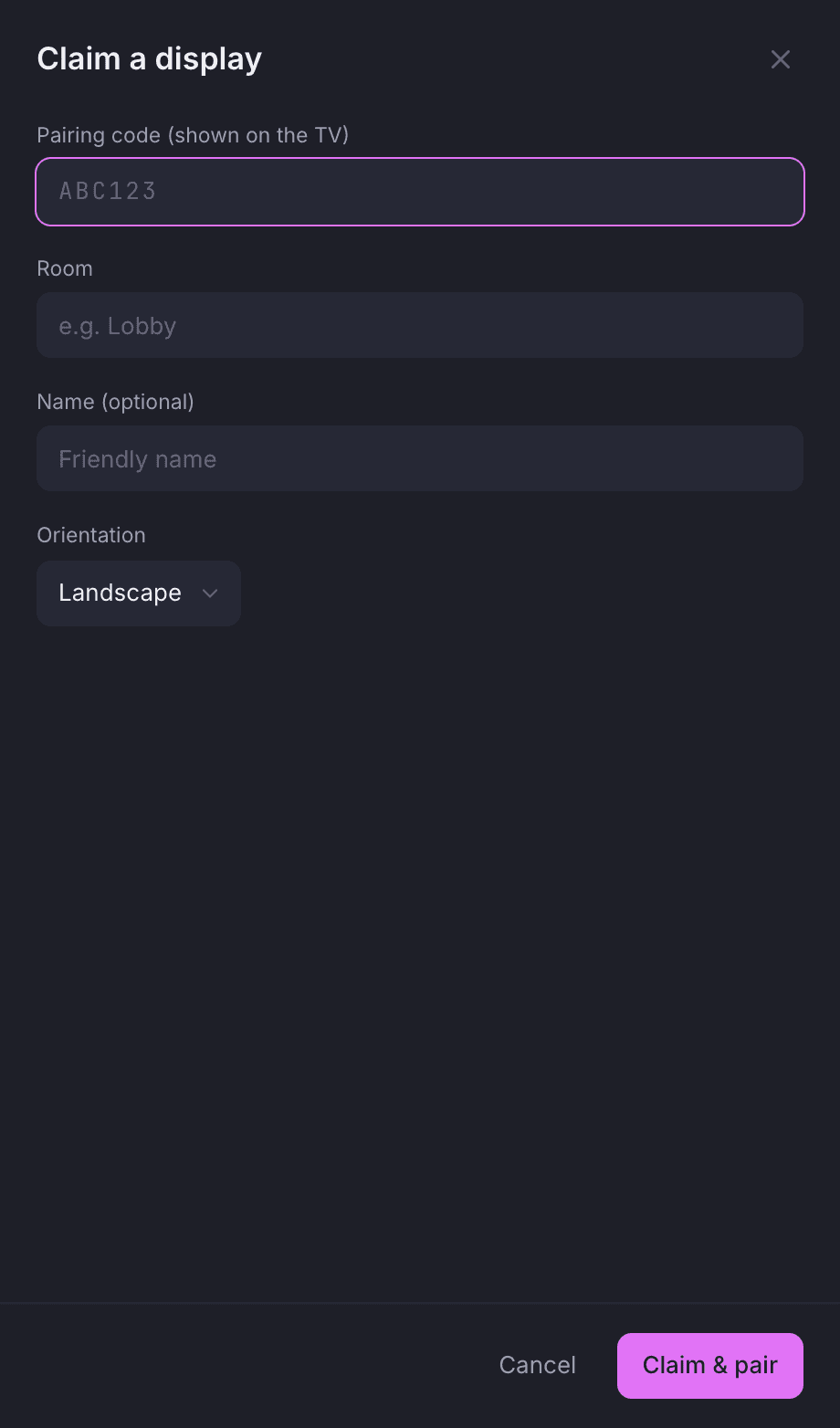
A TV shows a six-character code, and you type it into the backoffice.
Every TV runs the same tersOS app. Plug one in and it shows a code; a staff member types that code into the Displays screen, names the room it hangs in and picks its orientation. No two TVs anywhere on tersOS share a code, so a TV can only ever land in your space.
The claim panel on the Displays screen.
Type the pairing code, name the room, pick landscape or portrait. Unpair a TV and it goes back to showing a fresh code, ready to be claimed again. Codes nobody claims are cleared every hour.
- Pairing code, room, optional name and orientation
- Unpair a TV and it shows a fresh code, ready to be claimed again
- Codes nobody claims are cleared every hour
Playlists and media
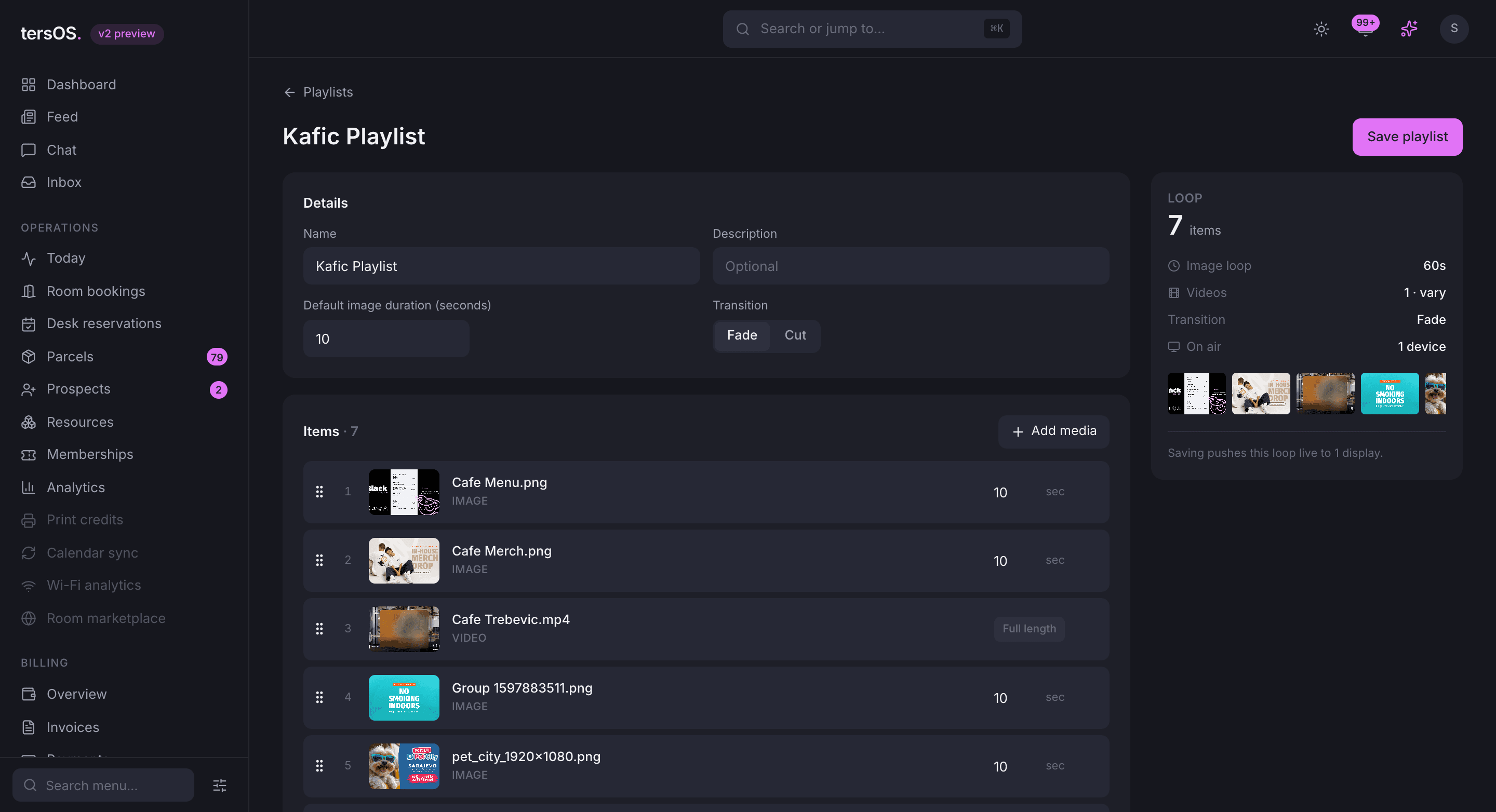
A playlist is a loop of images and videos that plays on the screens you choose.
Pick files from your media library, put them in order and give each one a duration. Assign the playlist to one screen or many. Upload a file once and reuse it in any playlist or mood; save a change and every TV on that playlist picks it up straight away.
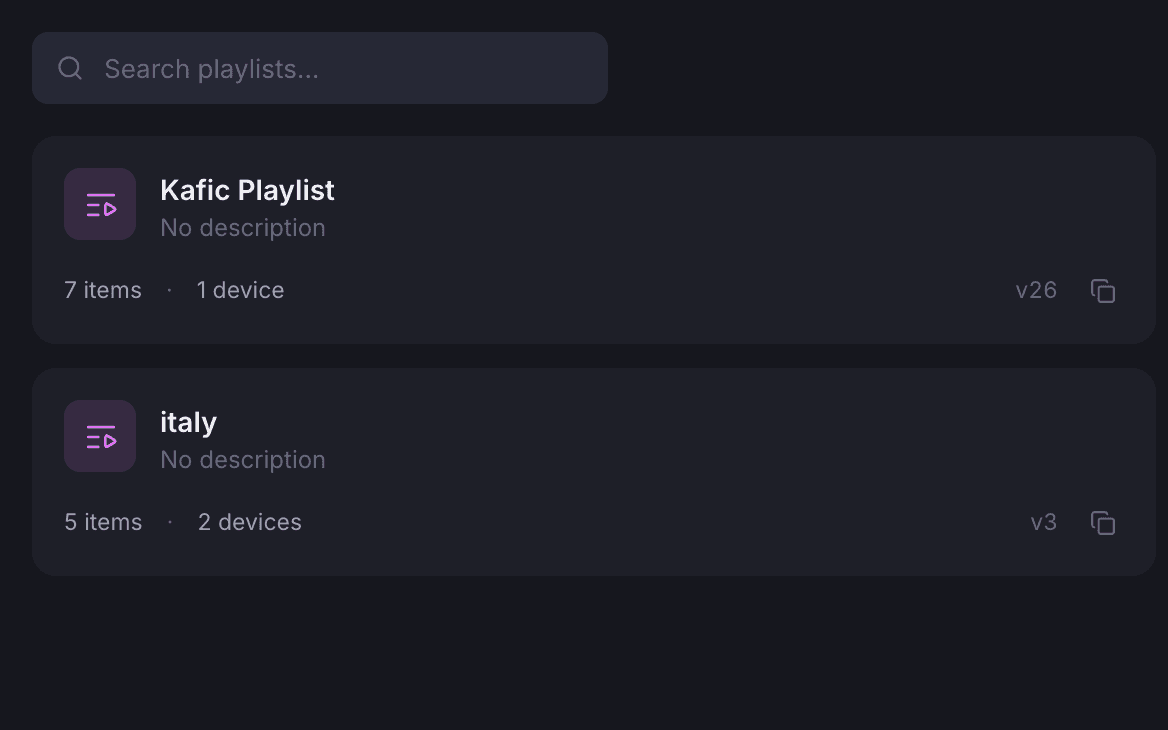
Every playlist, with where it plays
Each playlist shows how many items it has and how many screens it plays on.
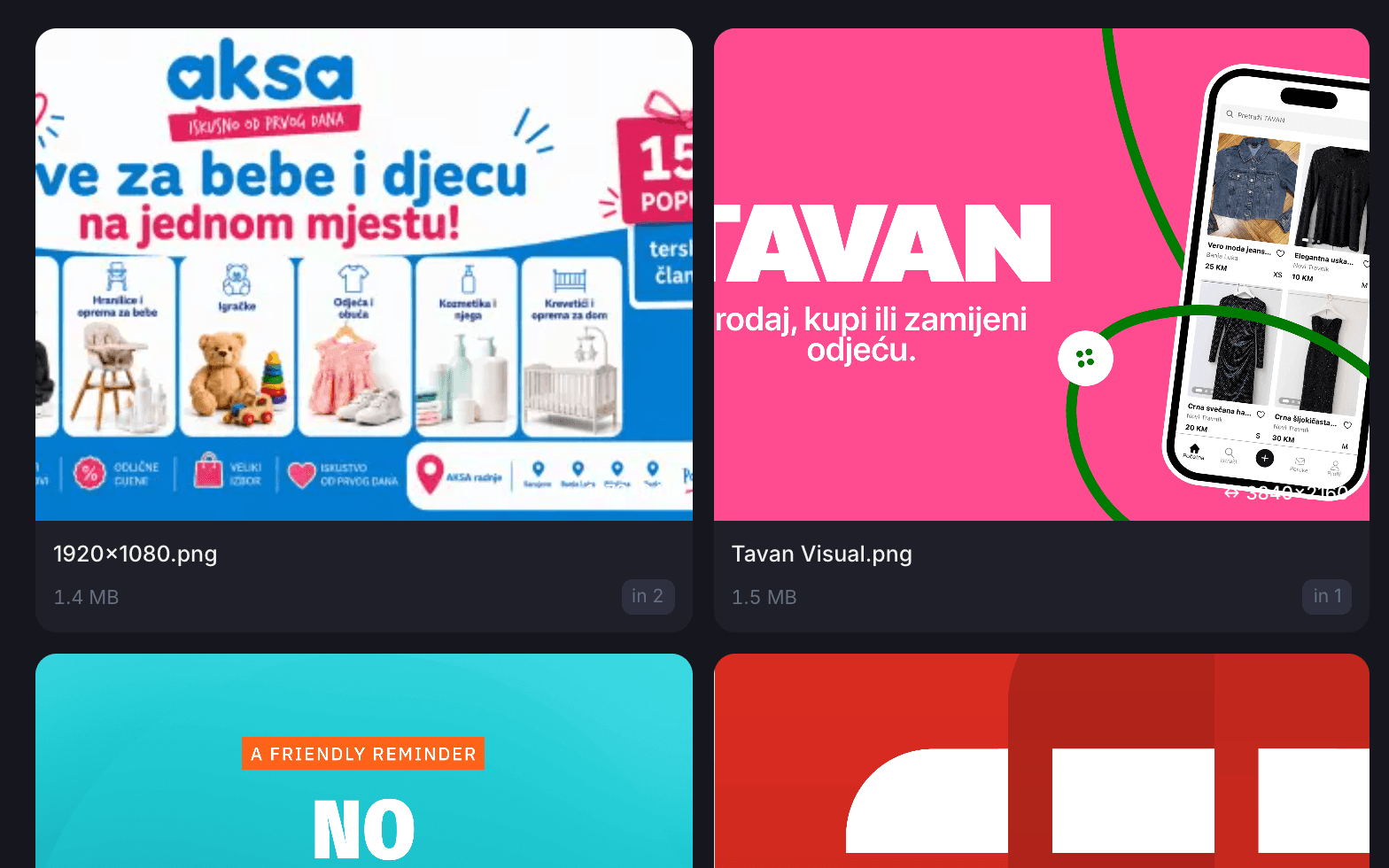
One media library
Images, video and audio are uploaded once and reused across playlists and moods.
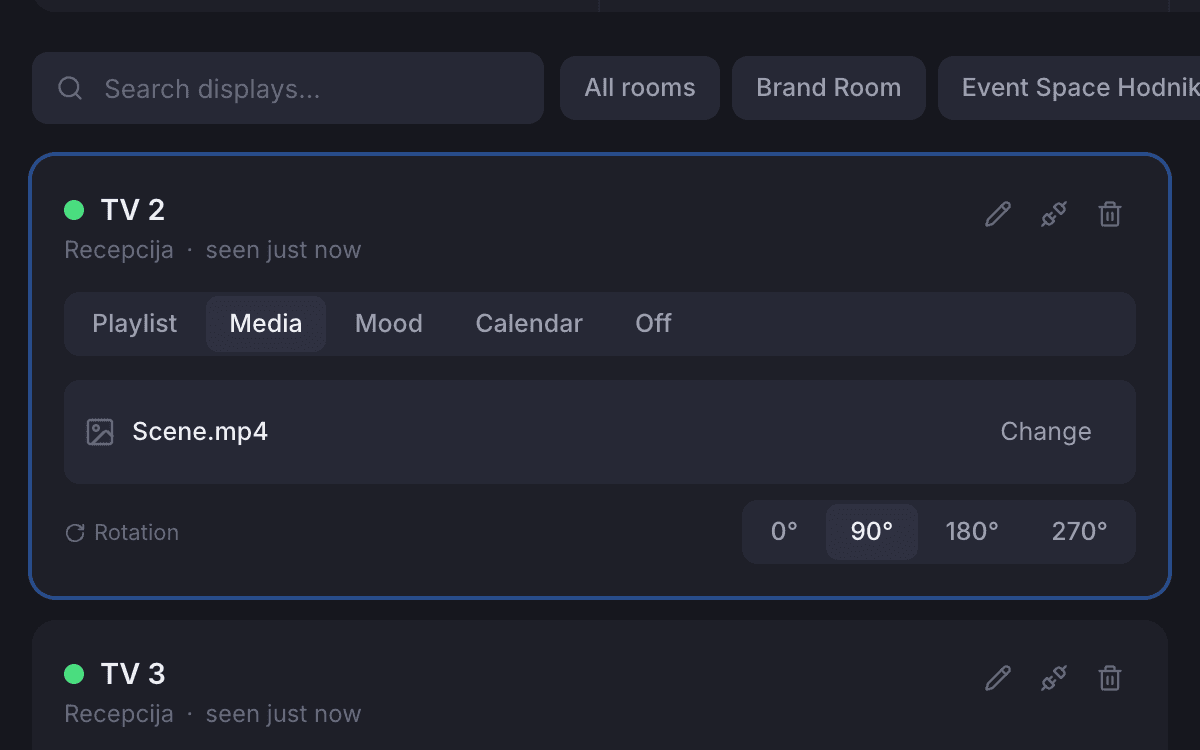
A single file on a screen
A screen can show one image or video on its own, rotated from the backoffice.
Moods and schedules
A mood pairs an ambient video with a sound, and a schedule switches moods by time of day.
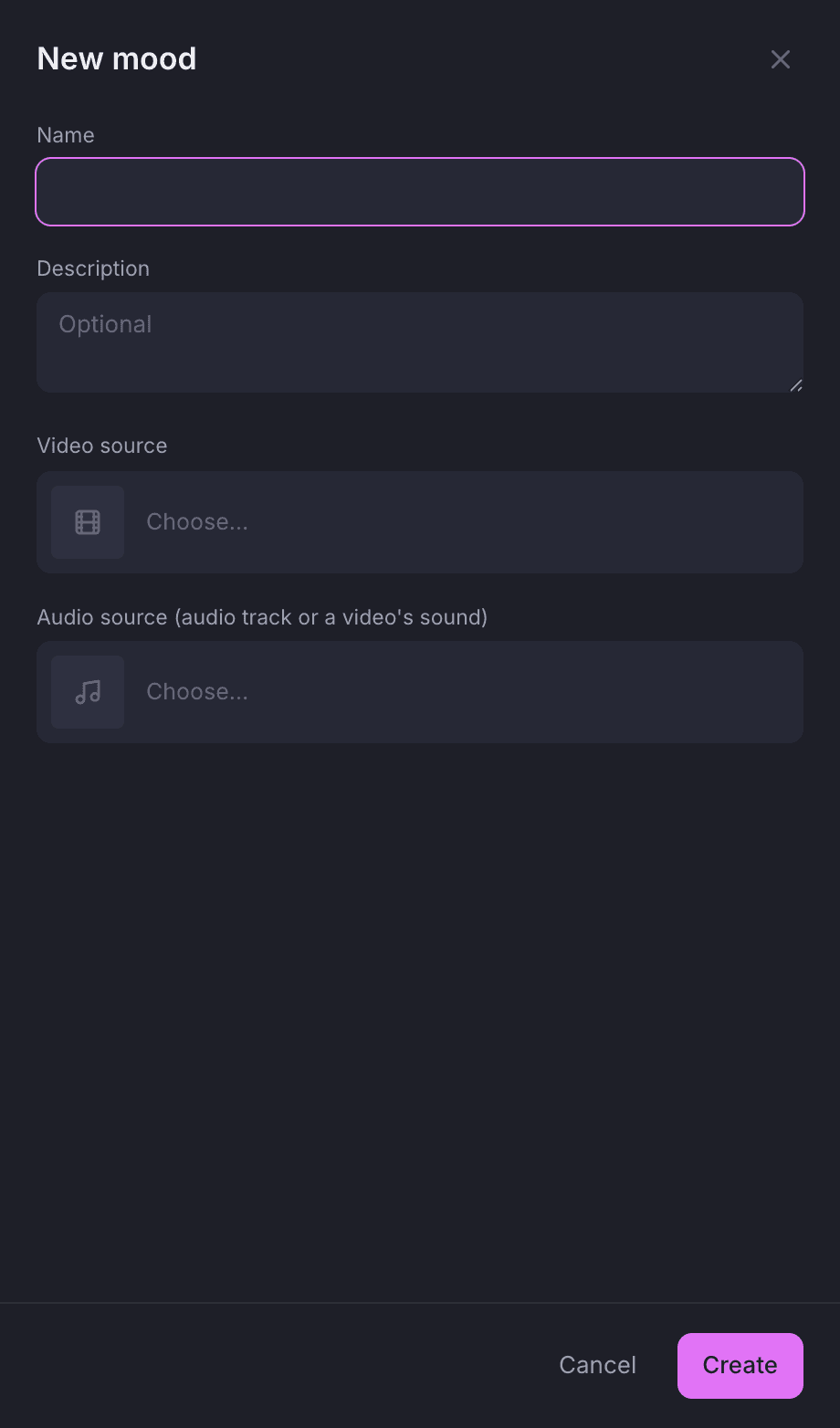
A mood is one video and one sound from your media library, with a name. A schedule is a set of time slots that choose which mood plays at each part of the day. Give a screen a schedule and it follows it on its own.
The New mood panel: pick a video and a sound.
Moods use files already in your media library. Change a mood and every TV using it switches over straight away.
- One video and one sound per mood
- A schedule is a set of time slots, each with its own mood
- Add, edit or remove a slot without touching the rest
Calendar mode
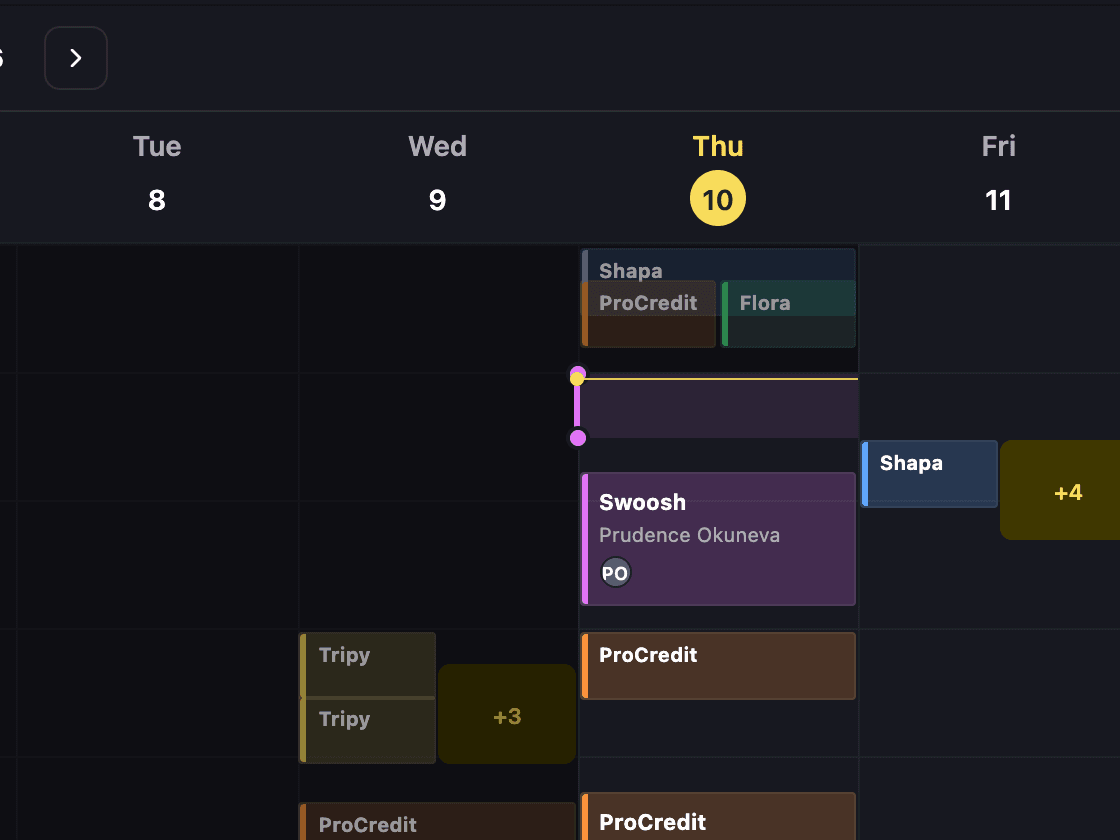
A screen beside a meeting room shows that room’s bookings for today.
Set a screen to calendar mode and choose the room it hangs beside. It shows that room’s bookings for the day, from the same calendar your staff, your members and tersAI book into, so anyone walking past can see what is on.
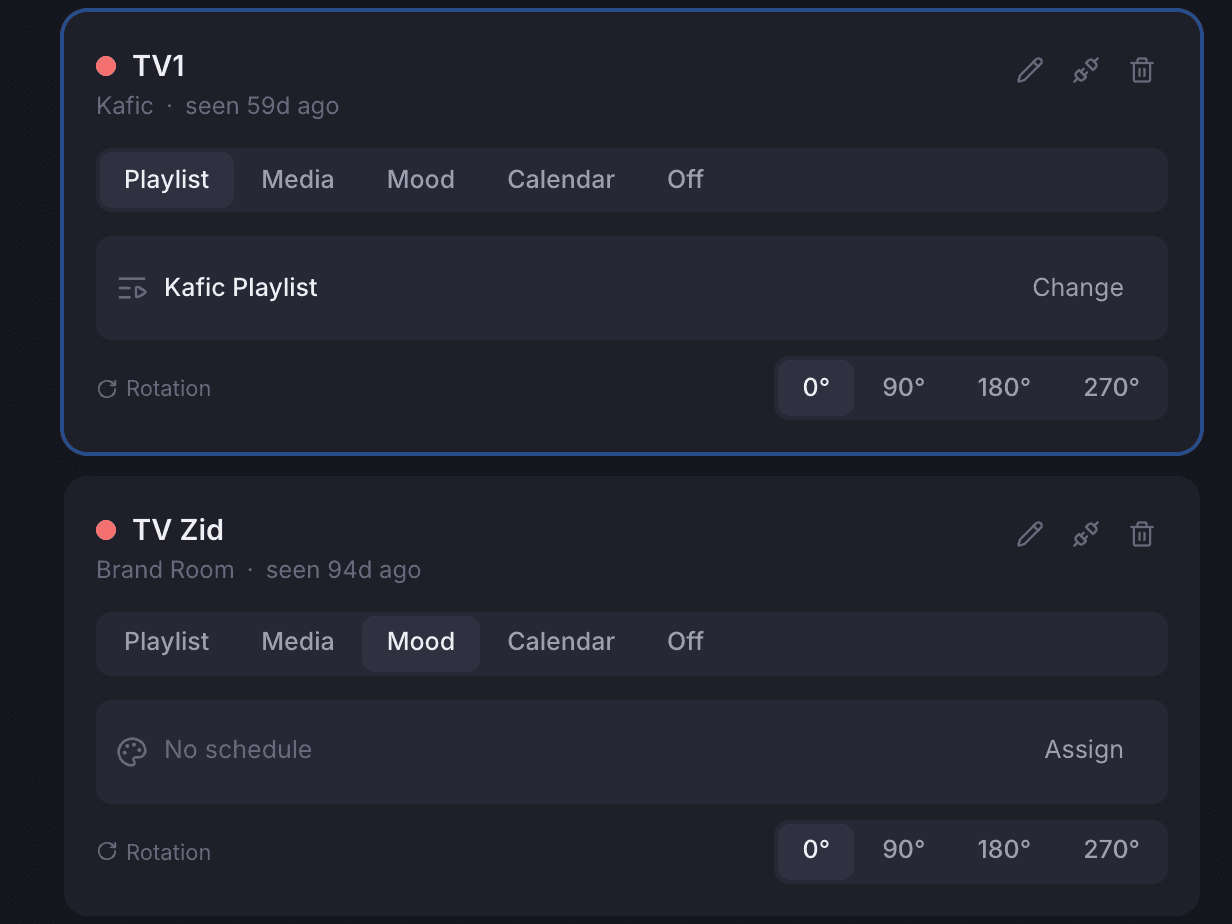
Mode is chosen per screen: playlist, media, mood, calendar or off.
Each screen card has the mode switch and shows what that screen is playing. Calendar mode asks you for a meeting room, and the screen then shows that room’s bookings for today.
- Playlist, media, mood, calendar or off, per screen
- Choose the meeting room from your list of rooms
- Copy one screen’s settings to every screen in its room
Screen health
Every TV checks in every 30 seconds, and the front desk is told when one goes quiet.
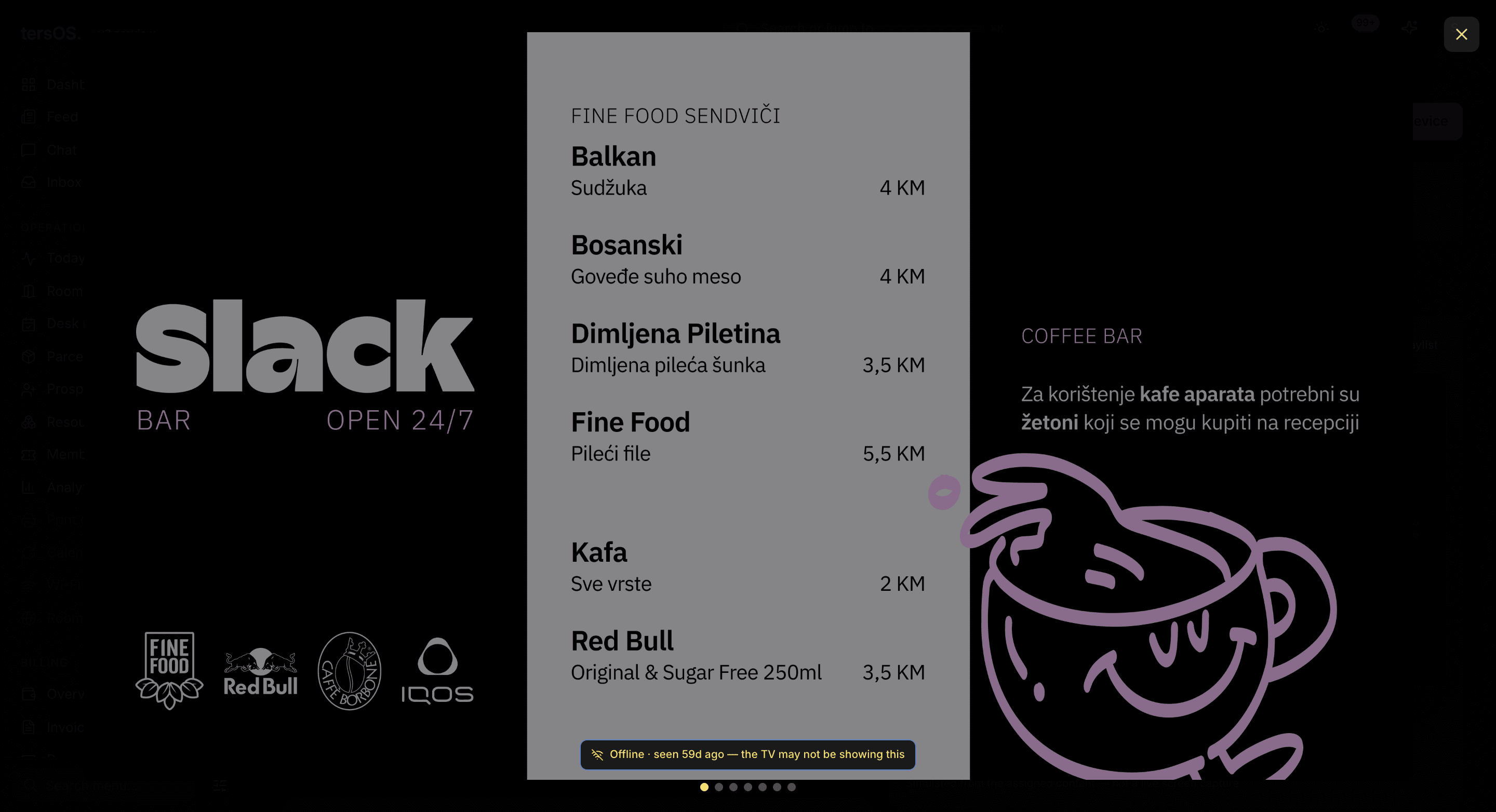
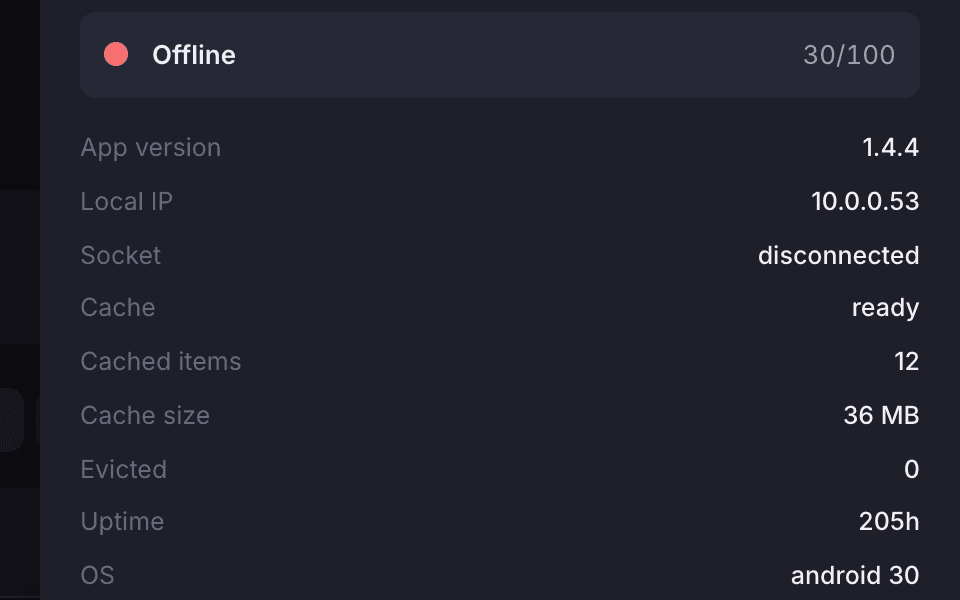
You can see when each TV last checked in and whether it is healthy. A TV quiet for five minutes is marked offline and your staff get a notification, and they are told again when it comes back. The preview shows what a screen is playing without anyone walking over to it.
When a TV last checked in
Open a TV’s health panel to see its status and when it last checked in.
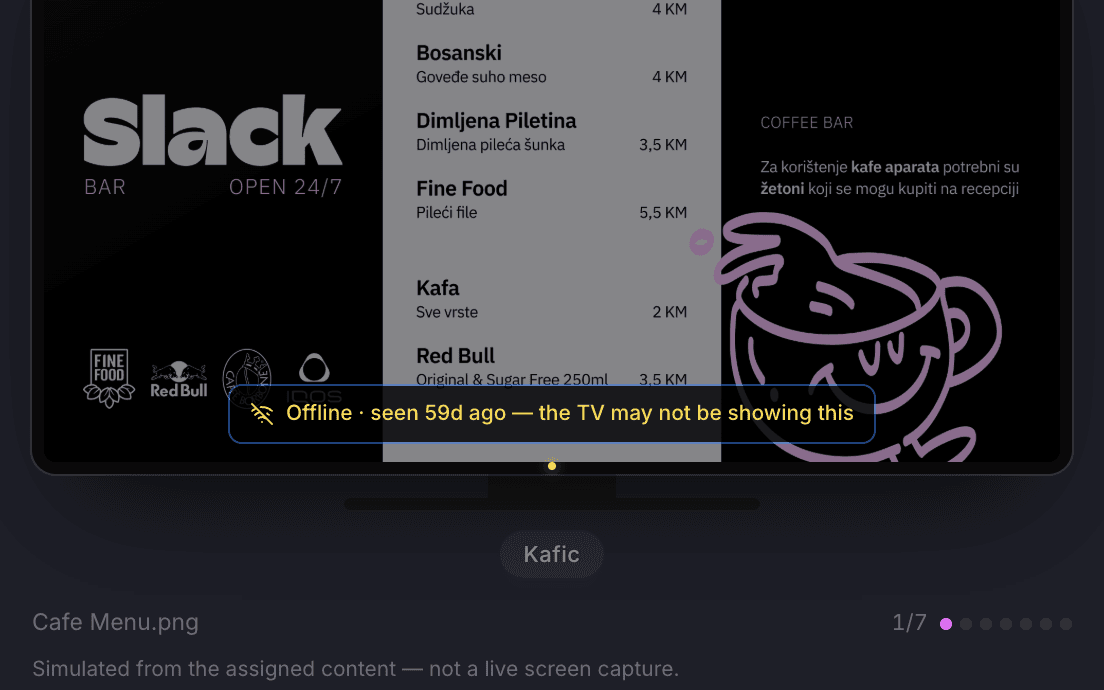
Marked offline after five quiet minutes
The preview says so and your staff get a notification, and another when it is back.
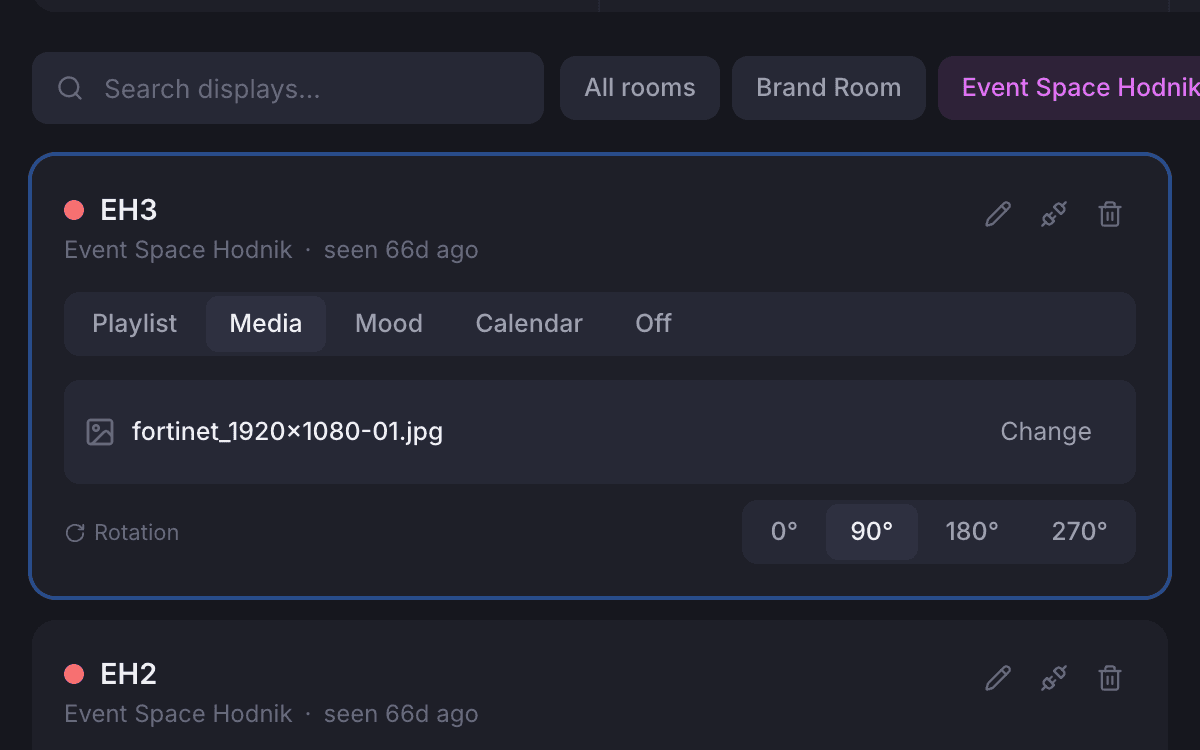
Every screen in a room
Filter by room and copy one screen’s settings to the others in one go.
Where it shows up
The same content, in the backoffice and on the wall.
Staff choose and preview a screen’s content in the backoffice, and the TV plays it. A door screen in calendar mode shows the bookings members make in the Member App, because both use the same calendar.
Also included
The rest of what Screens does.
Pair
- The same tersOS app on every TV, paired to your space by a code
- No two TVs on tersOS ever share a pairing code
- Room, name and orientation set when you claim
- Unpair a TV to claim it again, or delete it for good
- Codes nobody claims are cleared every hour
Show
- Playlist, single file, mood, calendar or off, per screen
- Rotation of 0°, 90°, 180° or 270° per screen, or as the TV reports it
- Apply one screen’s settings to every screen in its room
- Duplicate a playlist to start from a copy
- Changes reach every TV the moment you save
Watch
- Every TV checks in every 30 seconds
- Marked offline after five quiet minutes, with a notification to staff
- A separate alert when a TV keeps failing to load its content
- Another notification when a TV comes back
- A health panel per screen showing its status and past errors
- Preview what a screen is showing, from your desk
“Our screens just work. We don’t have to think about them.”The tershouse team, Sarajevo
Works with
Screens is one of ten modules.
Bookings →
A screen in calendar mode shows a meeting room’s bookings for today, from the same calendar.
Floor Plans →
The rooms you can put a screen beside are the same rooms drawn on your floor plan.
Events →
Screens in an event space play a playlist, a single file or a mood, set from the same Displays screen.