
09 — newsletters
Your member list is
your mailing list.
Your members and clients are already on the list, so there is nothing to export and no separate mailing list to keep up to date.
 Live · app.tersos.io
The AI studio
You describe the newsletter and the assistant writes the email.
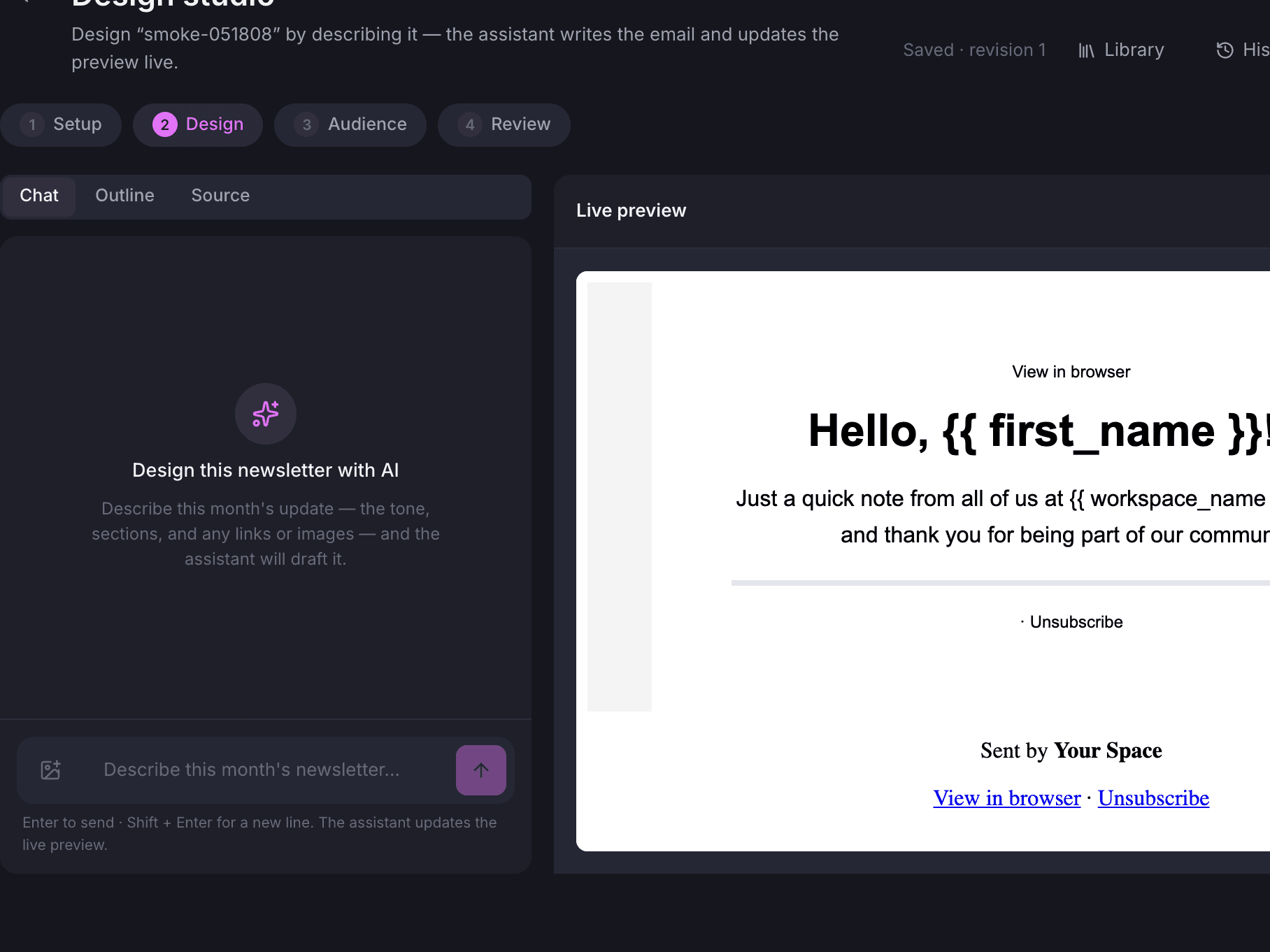
The design studio is a conversation. You describe the tone, the sections and the links, and each reply comes back as a finished design in the live preview. Every design is checked for common email problems before it reaches you.
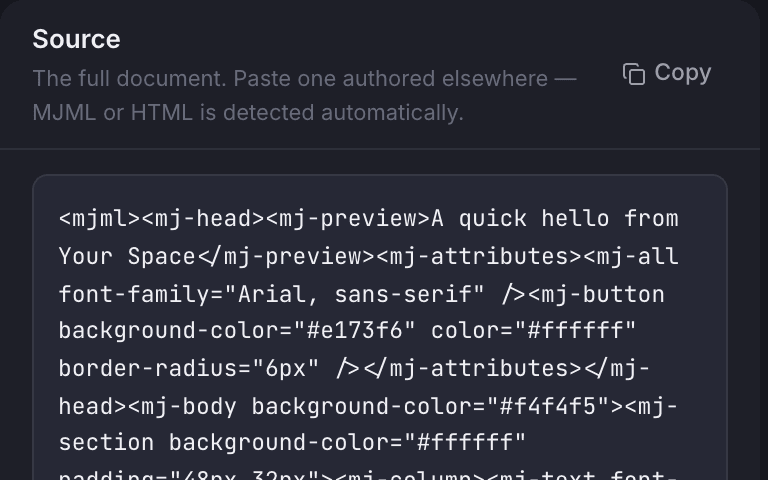
You can read the code behind it
The Source tab shows how the current design is written, if you ever want to look.
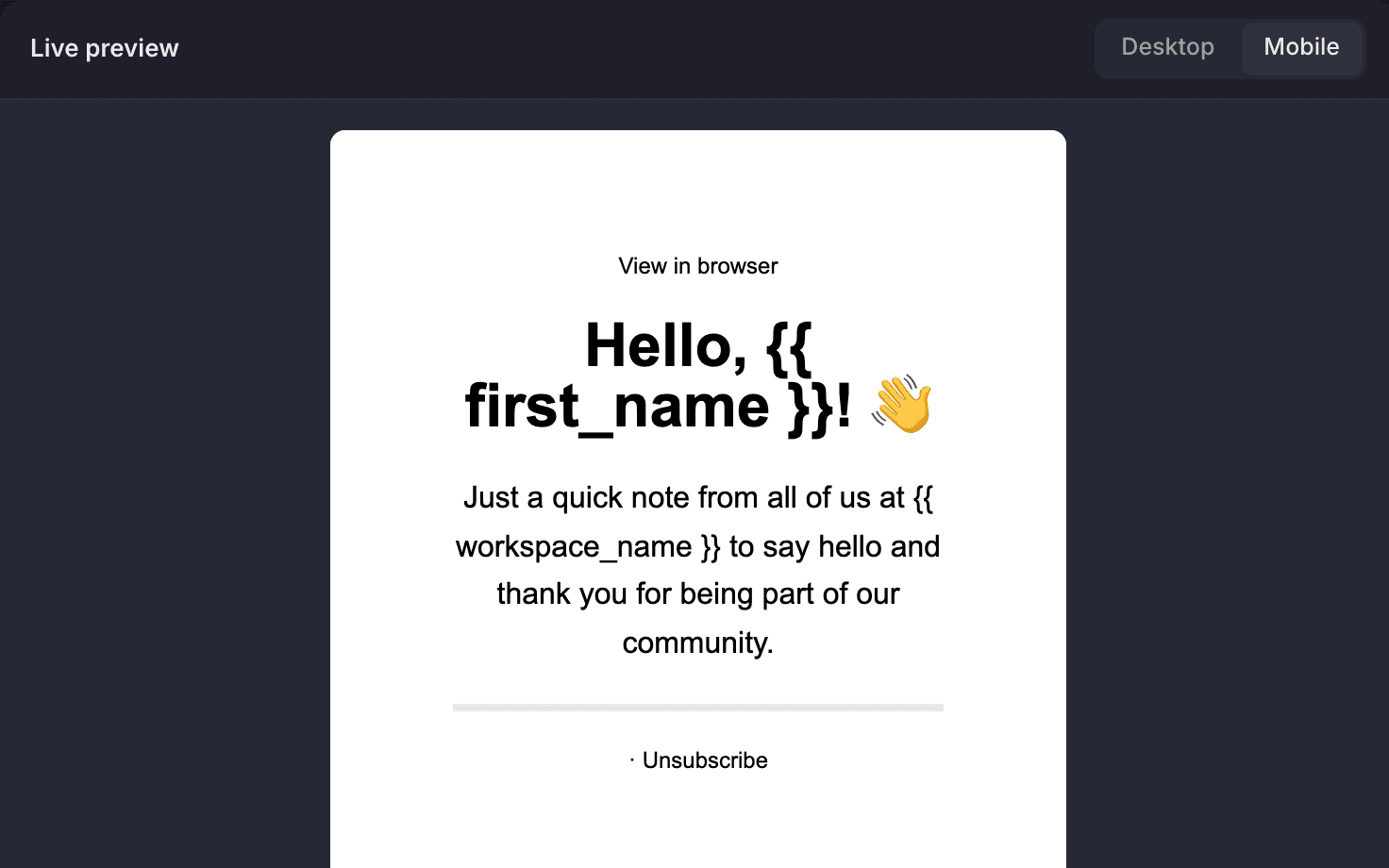
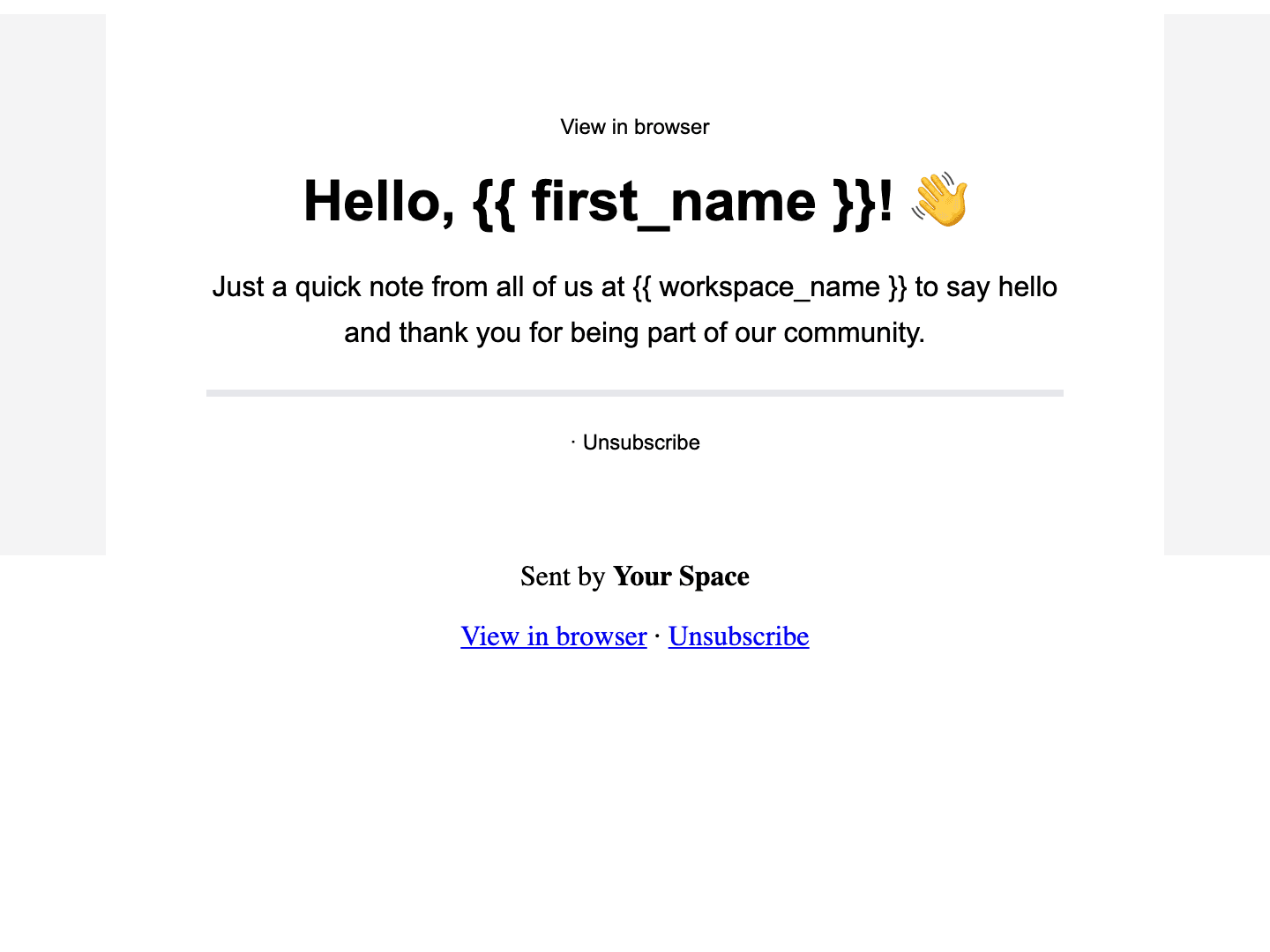
The preview is the real email
What you see in the preview is the email your members get, at desktop or mobile width.
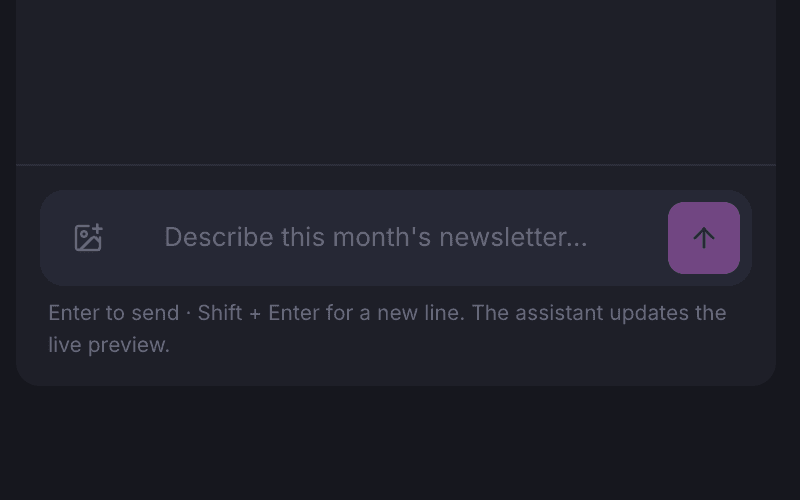
Show it a reference image
Attach a moodboard or last month’s newsletter and the assistant designs from it.
The last 10%
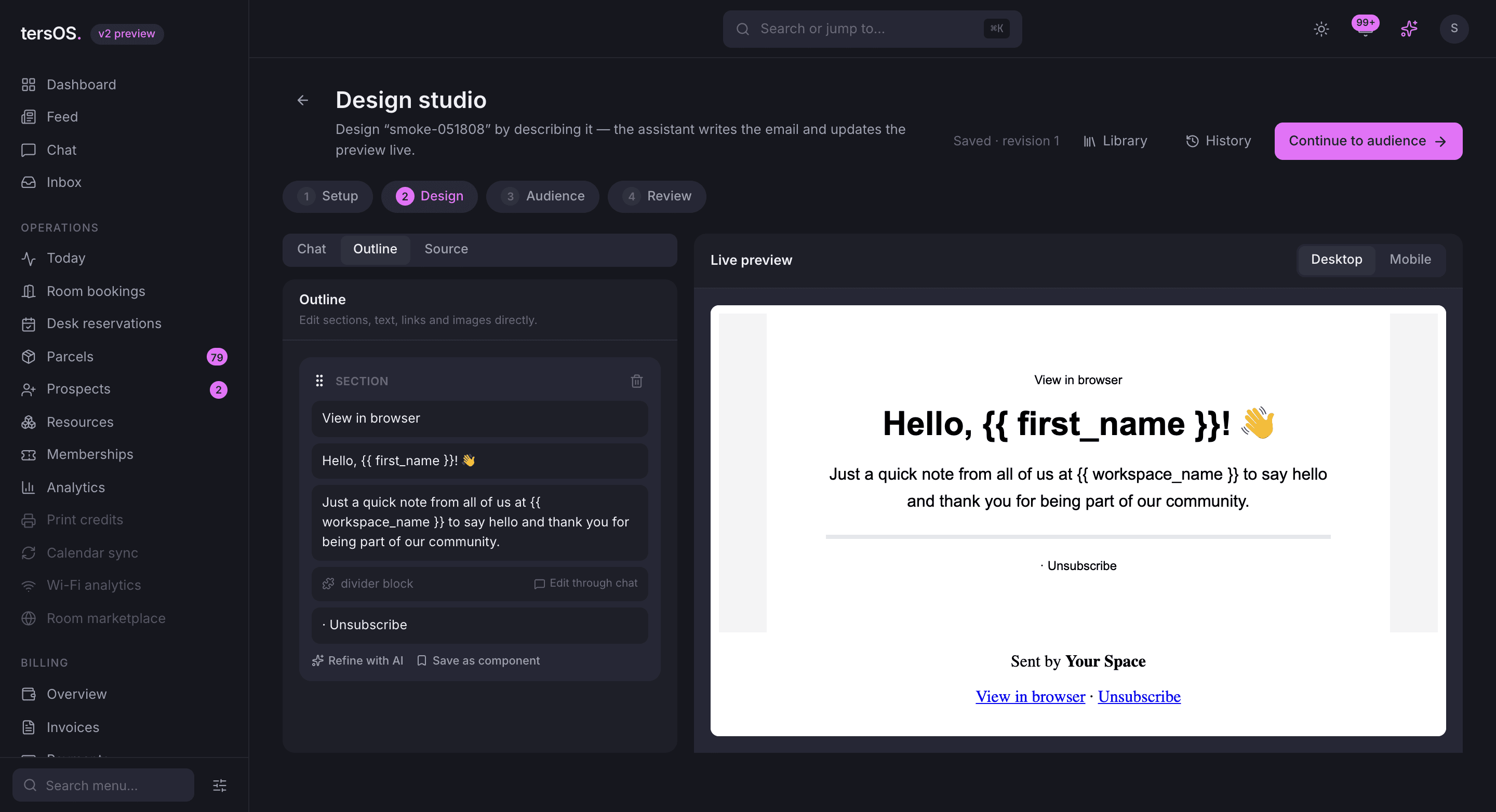
Edit the outline directly, roll back to any revision, and keep approved parts in a library.
When the design is nearly right, open the Outline tab and edit the sections yourself: change the text, swap an image, reorder or delete a section. Every change is saved as a revision you can go back to. Parts you approve go into the Design Library, and the assistant uses them next time.
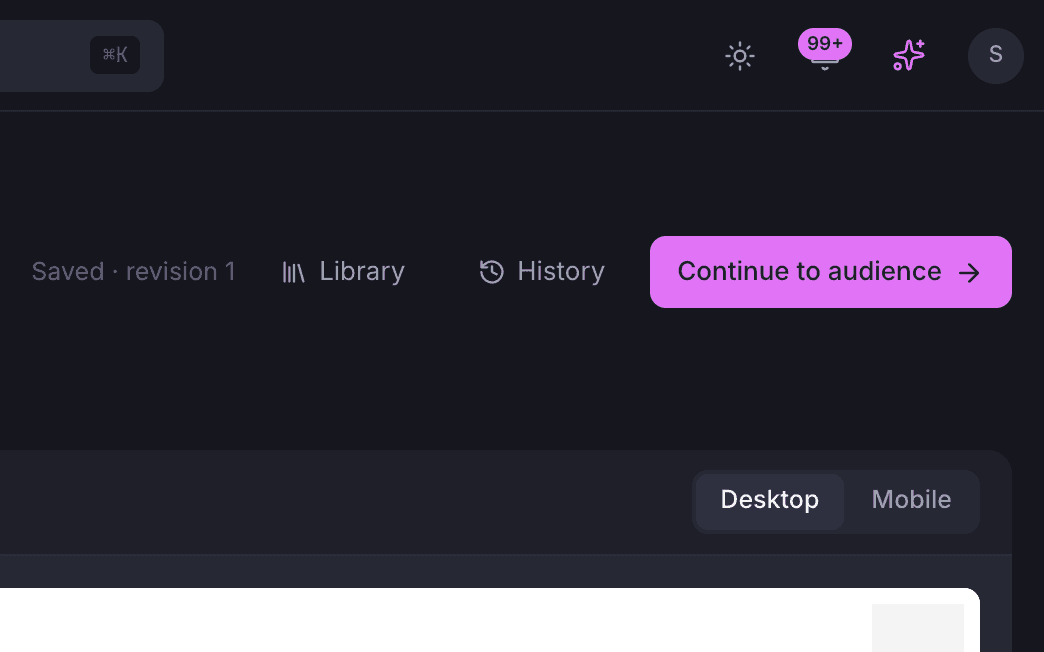
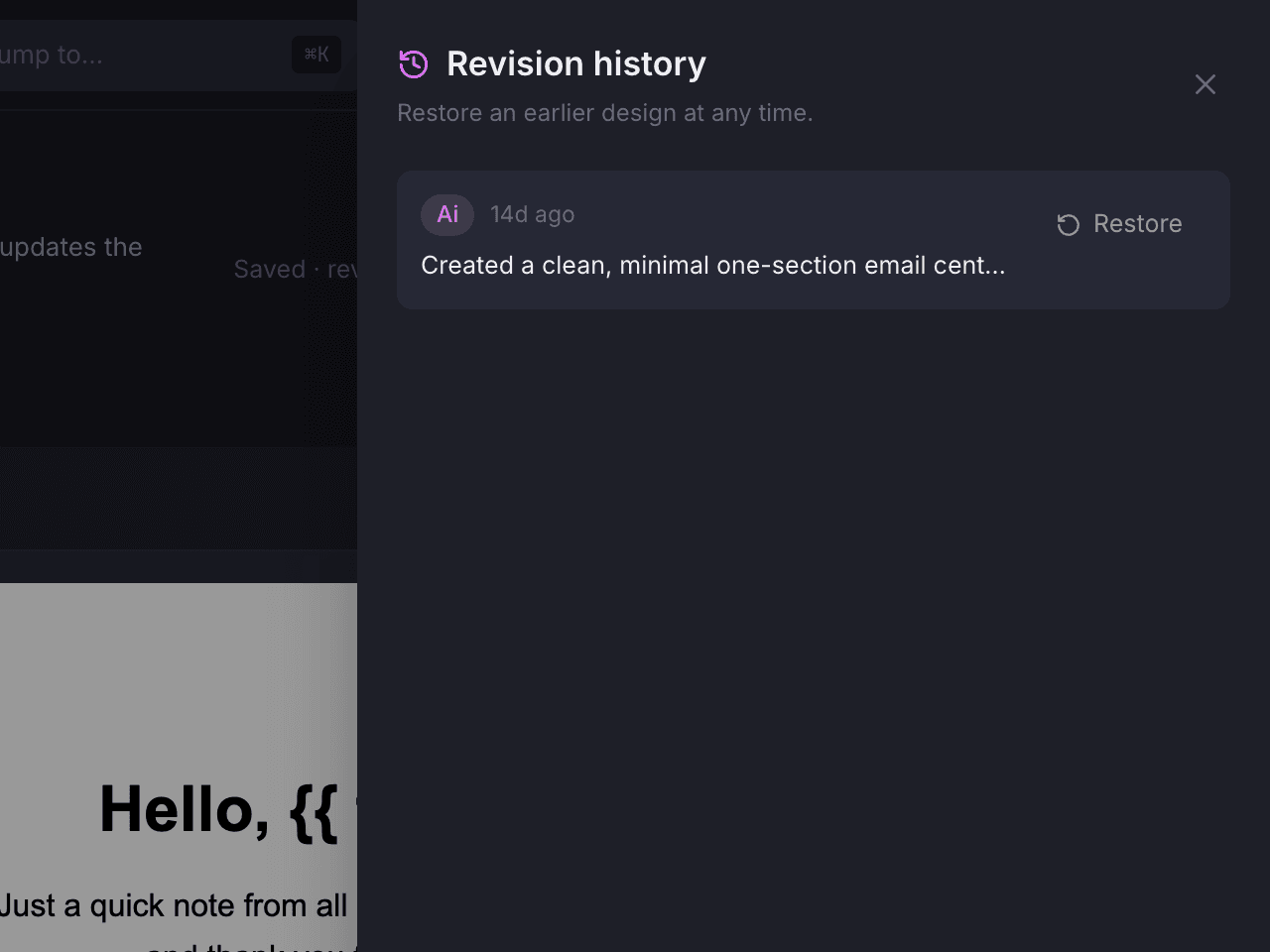
Every save is a revision
The History drawer lists each revision with a note on what changed and a Restore button.
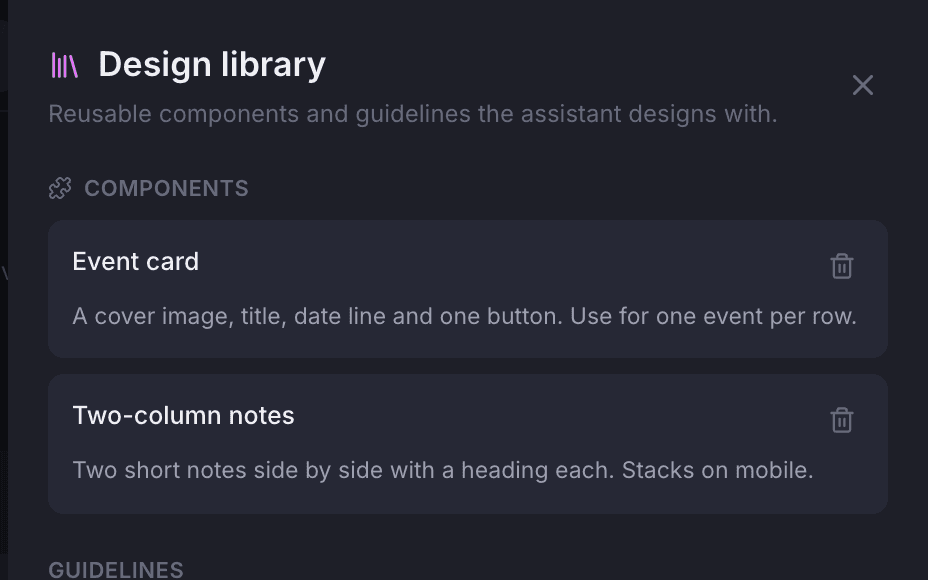
The Design Library
Keep the parts and guidelines you approve here and the assistant follows them.
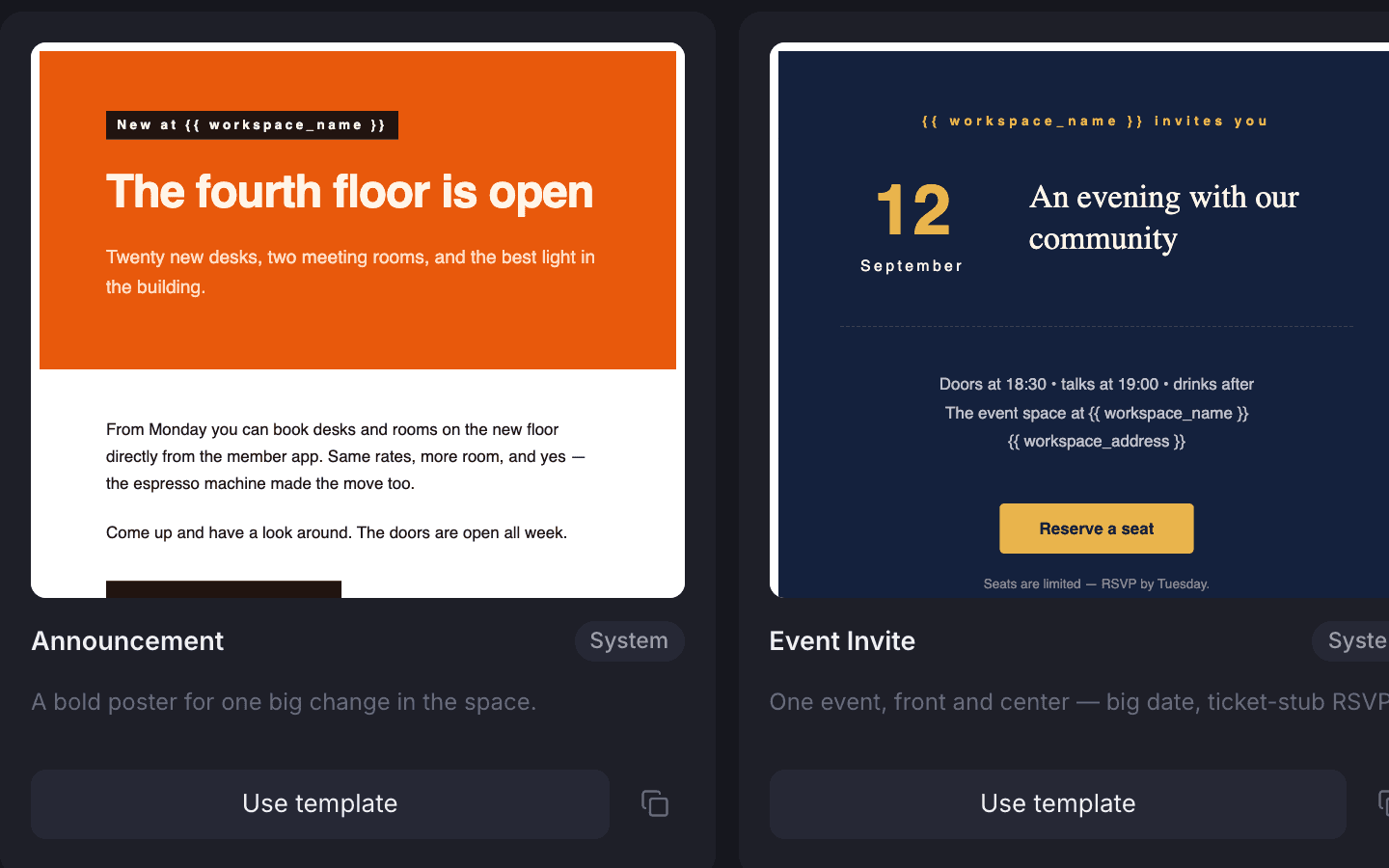
Templates
Start from one of six ready-made templates, or save your own campaign as a template.
Audience
Your members are already the audience, with tags, imports and segments on top.
Your members and clients are on the list from the day they join, outside subscribers join with their consent, and anyone can opt out. You can tag contacts, import a spreadsheet after checking a preview, and narrow the audience by tag, team, membership plan or an earlier campaign.
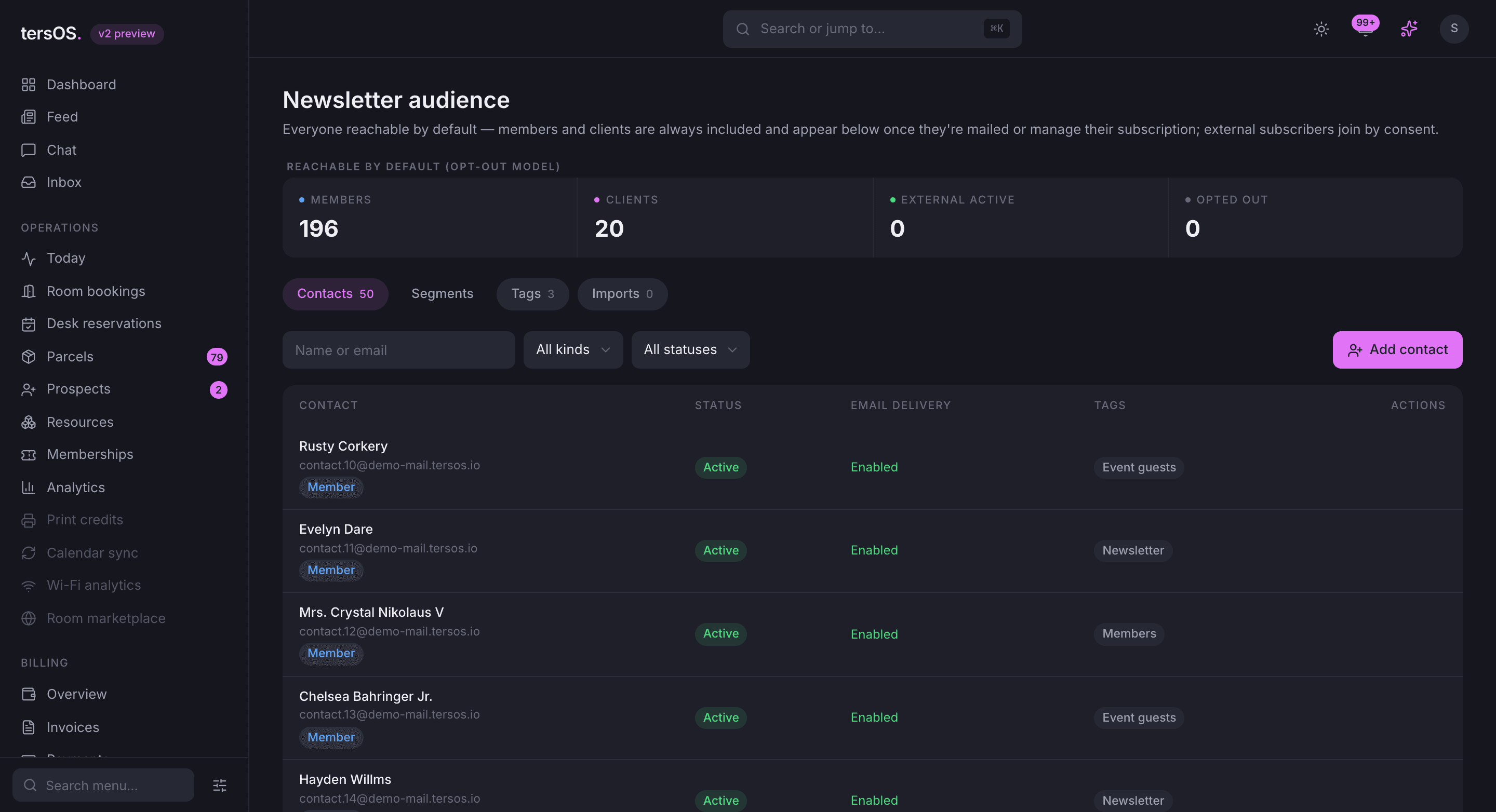
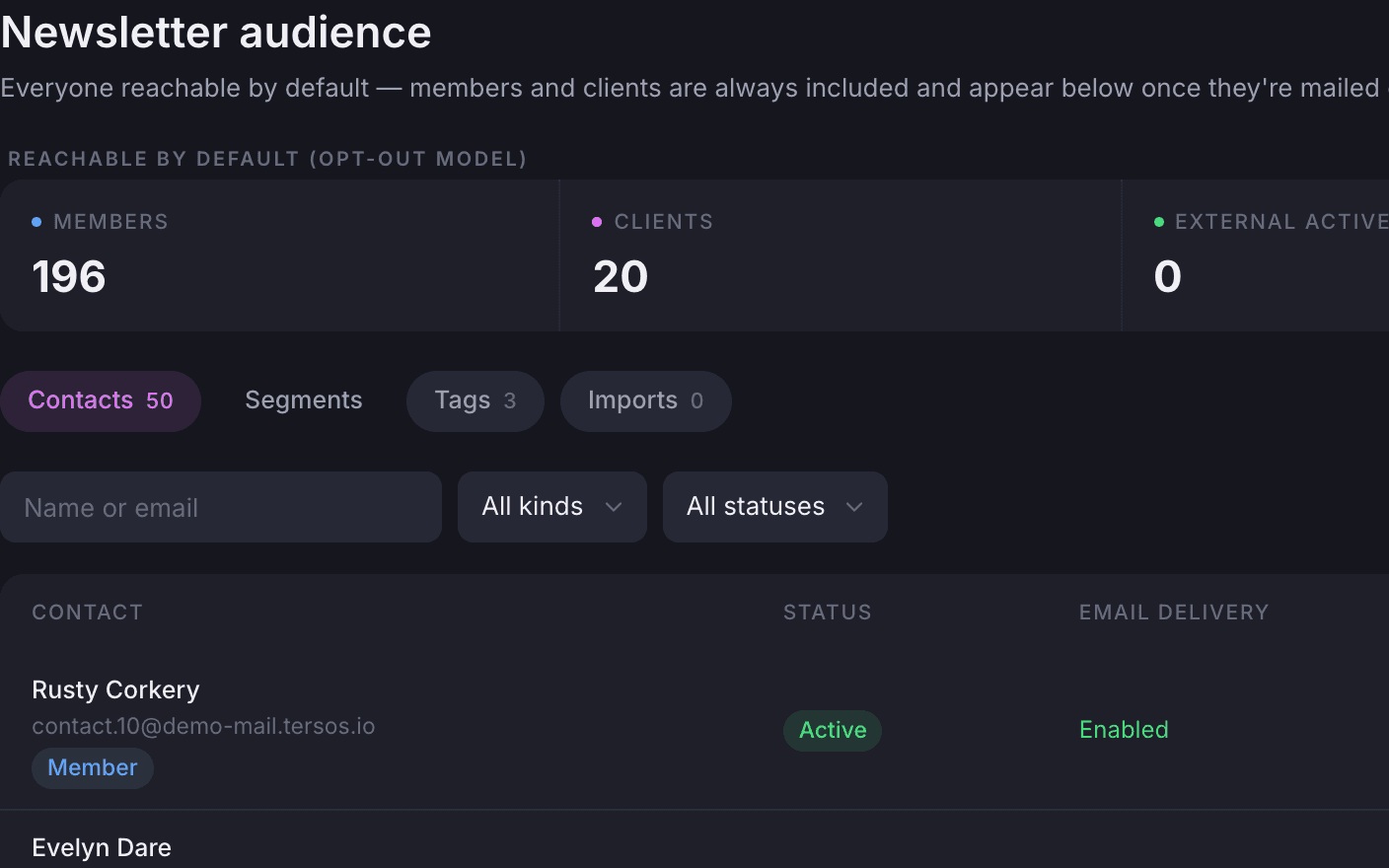
On the list from day one
Members and clients are on the list the day they join; the counters show who opted out.
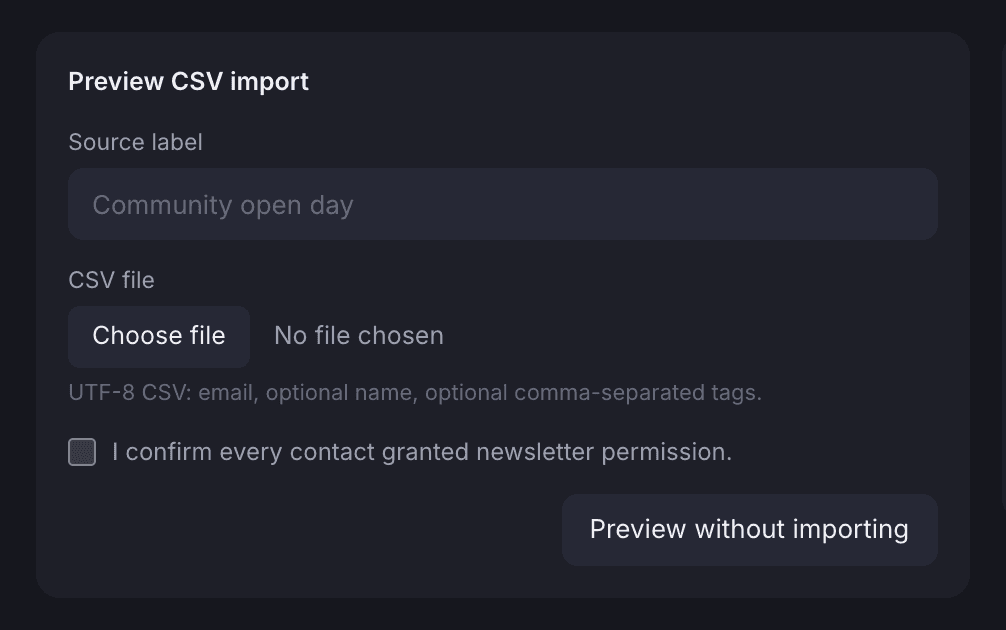
Import with a preview first
You see a preview of the list, confirm consent, and get a report of any rows that failed.
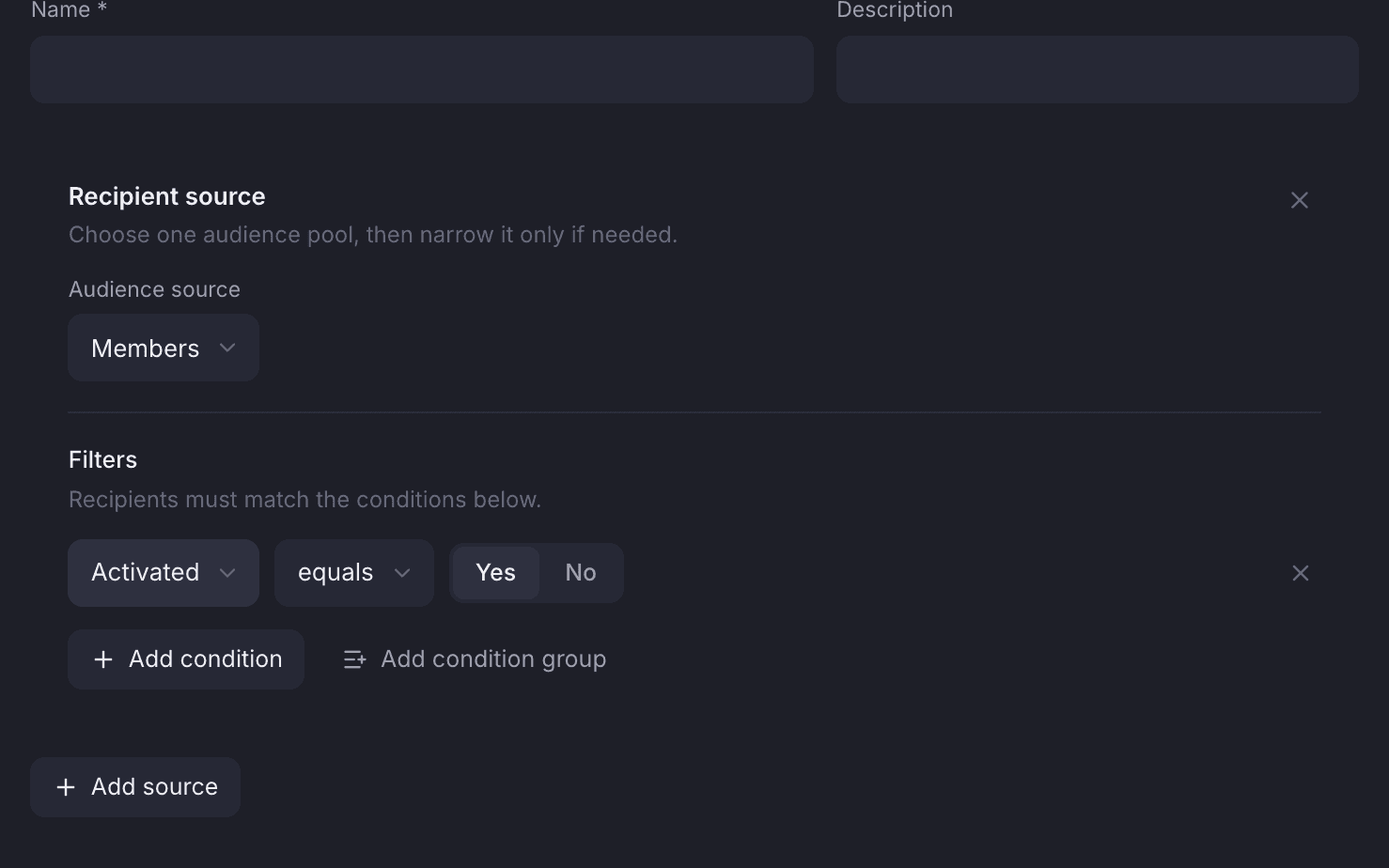
Narrow the audience
Pick a tag, team, plan or earlier campaign, and leave out anyone by their email address.
Segments
A segment is a rule, and its size is estimated before you save it.
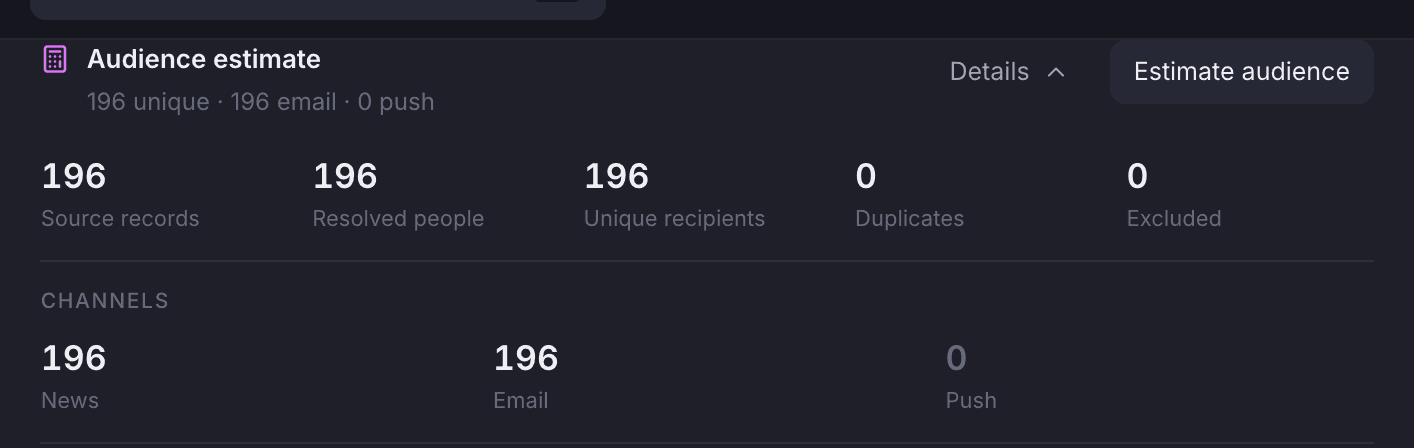
A segment is a saved audience rule you can reuse in later campaigns. Before you save it, you see how many people it matches once duplicates and exclusions are removed, and how many of them can be reached by email, in-app News and push. The review step shows a fresh count before you send.
You see the numbers before you save.
Run an estimate and the count comes from your live member list: how many people the rule matches, how many that is once duplicates are removed, and how many can be reached on each channel.
- Conditions from tags, previous campaigns, teams and membership plans
- Leave out anyone by email address
- Saved segments are reusable across campaigns
- The review step shows a fresh channel estimate before sending
Sending
A test send first, then one send that cannot happen twice.
Send a test to yourself first. When you send for real, the email and the sender details are locked, the send counts against the month’s allowance, and the same campaign cannot go out twice. Members can also get it as in-app News and as a push notification.
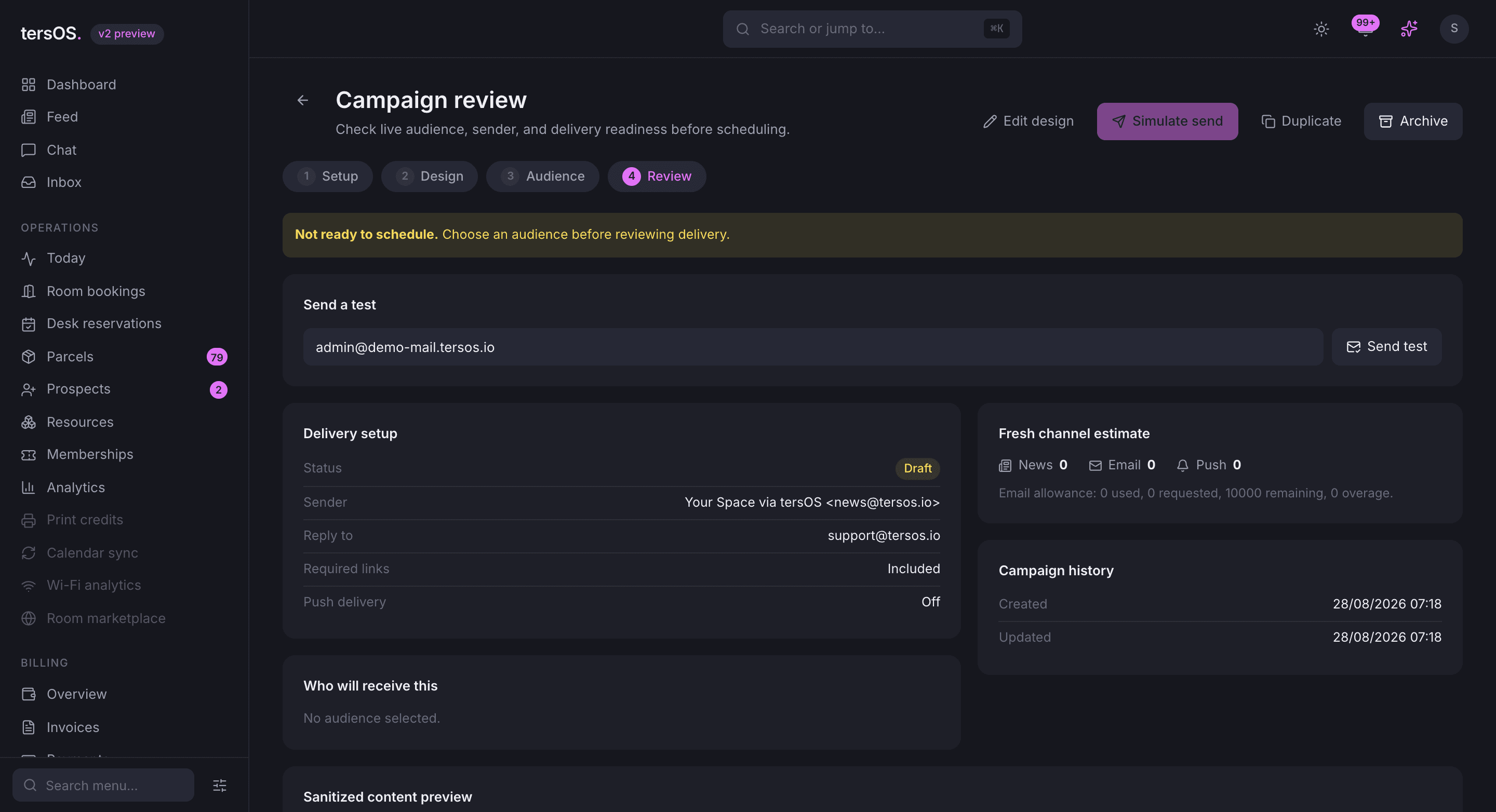
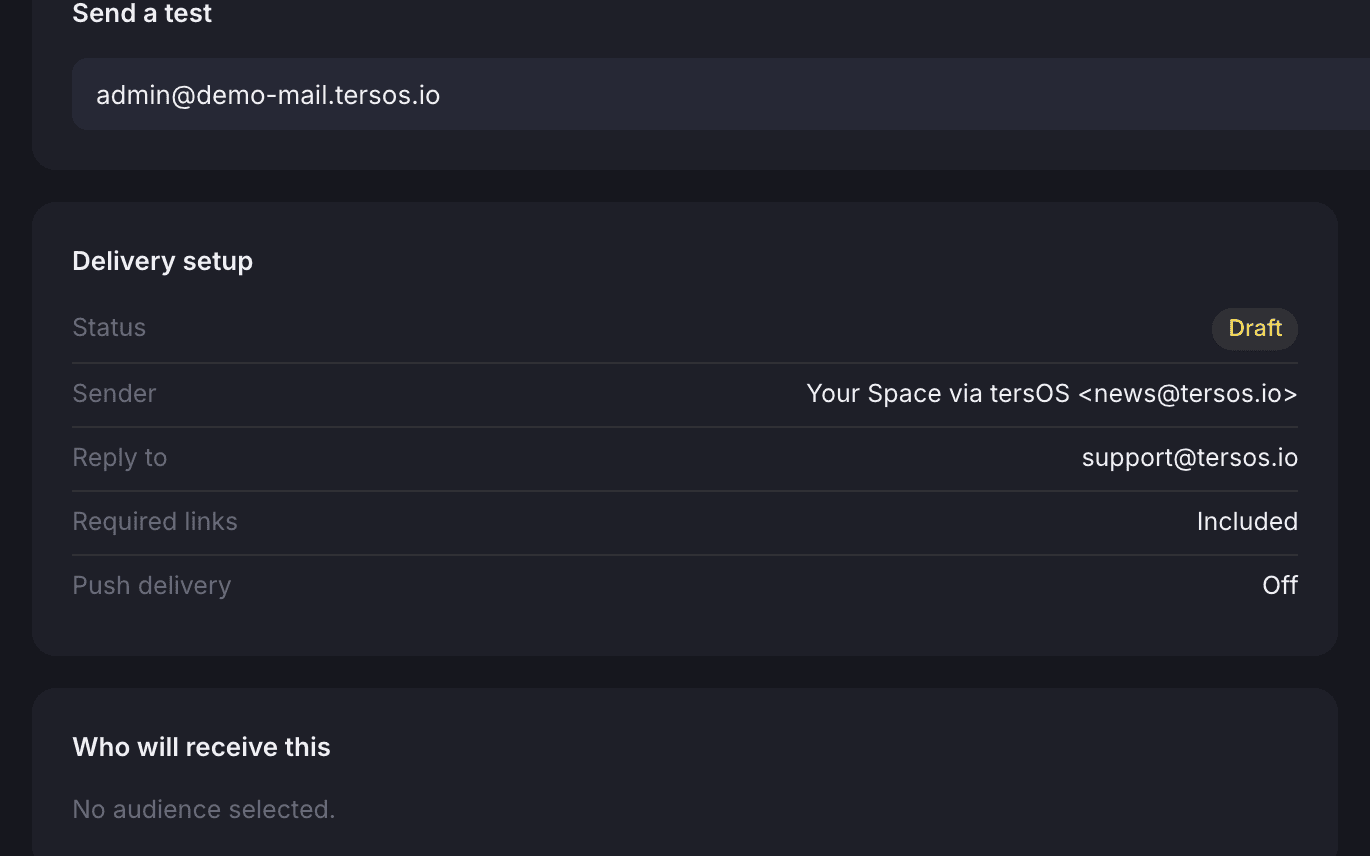
The delivery setup
Sender, reply-to and the required unsubscribe and web-version links are checked here.
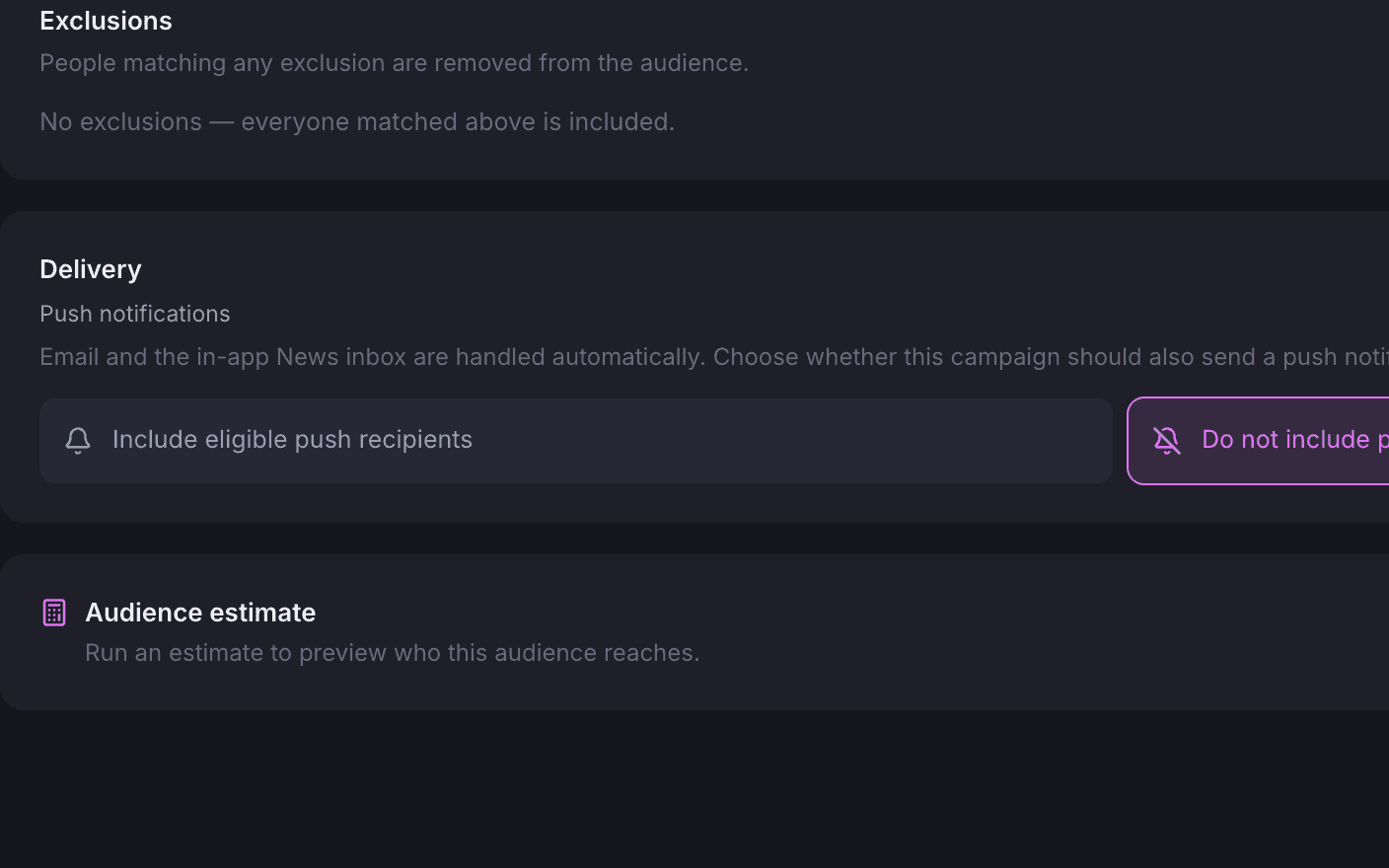
Three channels
Email and the in-app News inbox are automatic; push is a choice per campaign.
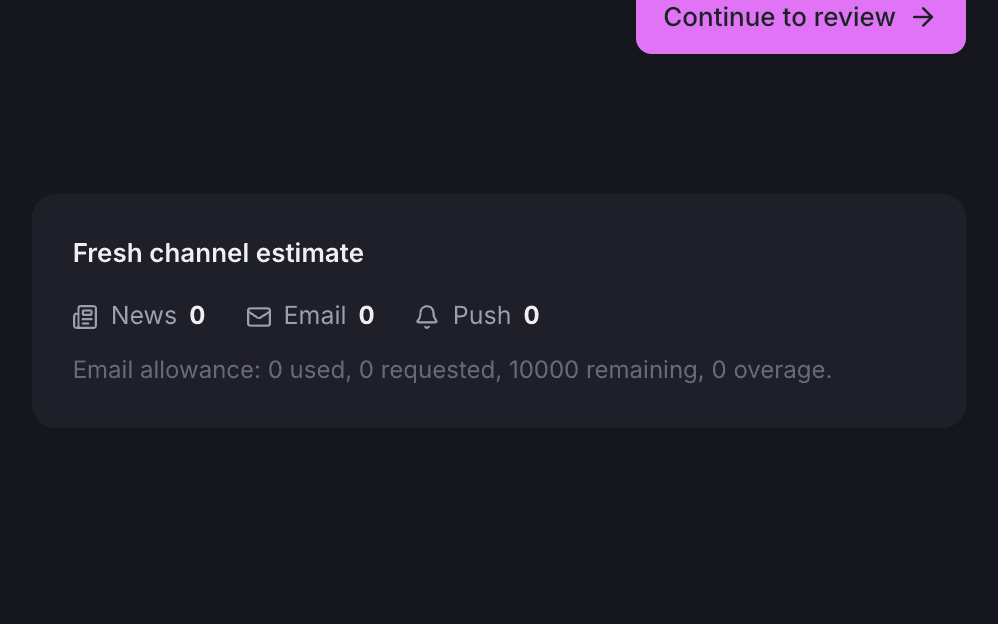
The channel estimate
Recipients per channel are counted before sending, beside the month’s email allowance.
Honest analytics
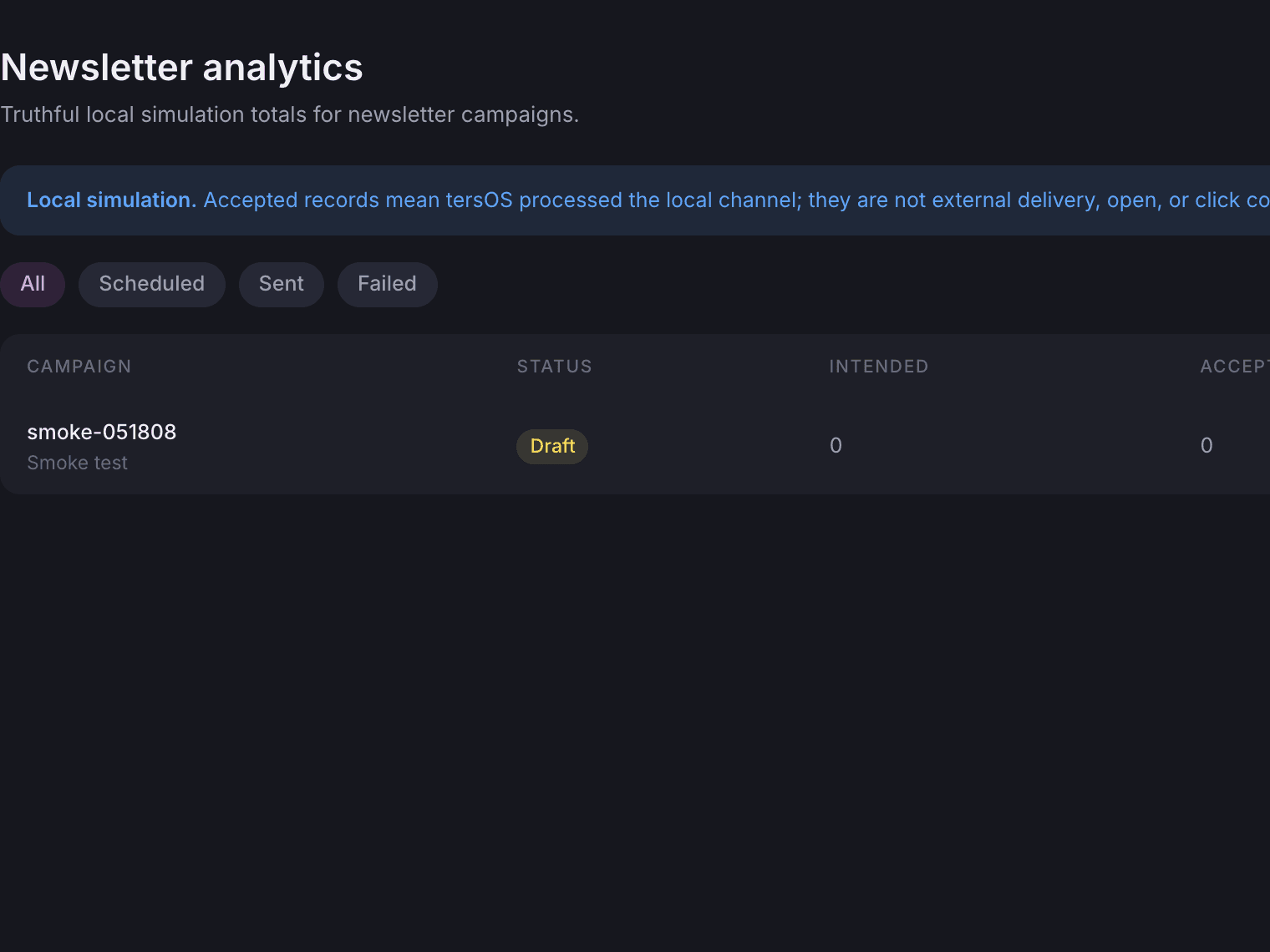
The report counts what was intended and what was accepted, and says so.
For each campaign the report shows how many deliveries were intended and how many were accepted, per channel, with failures and suppressions counted separately. Bounces come back from the email provider. The page explains what accepted means, so nobody reads more into the numbers than is there.
Four counts per campaign: intended, accepted, failed and suppressed.
Each campaign has the four counts and a per-channel breakdown for News, email and push. The list shows the same two numbers for every campaign.
- One row per campaign with intended and accepted
- Per-channel counts for News, email and push
- Failures and suppressions counted separately
- Bounces reported back from the email provider
Where it shows up
The same campaign in the studio, in the inbox and in the report.
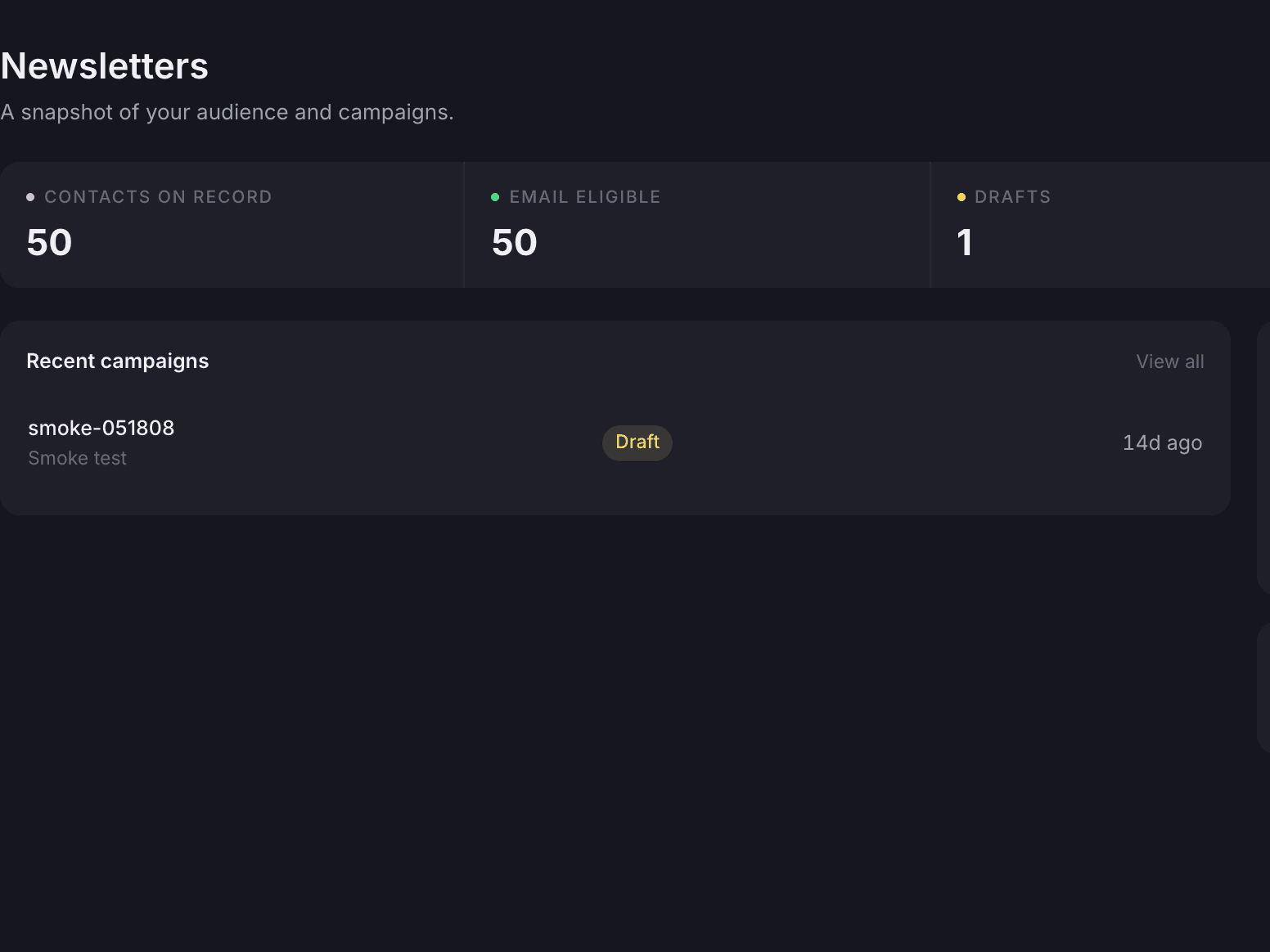
A campaign is designed in the studio, sent exactly as you previewed it, and reported as intended and accepted deliveries. Outside subscribers confirm by email before they join, members opt out from inside the Member App, and every email has a web version and an unsubscribe link that needs no login.
Also included
The rest of what Newsletters does.
Design
- Six ready-made templates, including Event Invite and Monthly Digest
- Copy a ready-made template into your own, or save a campaign as one
- Warnings for Gmail clipping, missing image text and Outlook problems
- Warnings never block a send
- Sender name, address and reply-to are locked with each send
- Revisions are kept for your own edits as well as the assistant’s
Audience
- Members and clients are on the list; outside subscribers join by consent
- Tags on contacts, reusable across saved segments
- A downloadable error report for every import
- Exclude anyone by email address
- Teams and membership plans as audience options
- Members opt out from inside the Member App
- An unsubscribe page that needs no login
Send
- The monthly email allowance is checked before every send
- Newsletters are sent apart from your everyday emails
- One-click unsubscribe on every email
- Bounces are reported back and counted
- A web version of every campaign, with its own link
- A send that gets stuck is caught and dealt with
The October issue
The assistant drafts the issue, the checks flag a problem, and a revision fixes it.
You describe the issue in the studio and the design appears in the preview. Every reply is checked for common email problems, such as a missing image description or Gmail clipping, and the warnings never block a send. Ask for a change and you get a new revision; earlier ones restore from History.
“Draft the October newsletter: a short hello, the new desks on the fourth floor, Thursday’s talk with a Reserve a seat button, and our usual footer.”
tersAI — Drafted: a greeting, a fourth-floor section with an image, the talk with its button, and the footer with the unsubscribe and web-version links. One check is open: the fourth-floor image has no alt text.
“Add the alt text and cut the talk section to two lines.”
tersAI — Done. Revision 3 is in the preview and the checks are clear.
a design drafted, a check raised and a revision applied; any earlier revision restores from the History drawer
“We stopped exporting member lists. Now our audience is always up to date.”The tershouse team, Sarajevo
Works with
Newsletters is one of ten modules.
Community →
Members and teams are the audience, so the people in the feed get the newsletter without a separate list.
Events →
The Event Invite template announces a community event; registration stays on the Public Hub.
Memberships →
Membership plans are an audience option, so a campaign can go to one plan only.